popunder new

https://www.blogger.com/blog/posts/1739890295310631346

Wednesday, October 19, 2011

Create Custom Libraries in Windows 7 and Deploy Them Through Group Policy

Create Custom Libraries in Windows 7 and Deploy Them Through Group Policy

The library functionality was introduced within Windows 7 and provides users a single point of entry for specific data. For example, a company can have their data stored on several servers and for users it is not always clear what data can be found at which location. In such cases, the library can offer the users a great way to easily access the locations where the data is stored, with a single point of entry.Since it is not desired that the users will have to configure this themselves, I have written this post so that you can easily create your own company wide custom libraries.

Creating the custom library


  • Log on the Windows 7 VM with credentials which has access to the locations you wish to add to the libraries.

  • Open Windows Explorer.

  • In the right pane, right-click on a white part of the screen.

  • Select New -> Library.


Fill in the name for the Library.


  • Right click on the library and select Properties.

  • Add the locations you desire to add to this library.

  • Select the location you desire to set as the default location to save data to and click on “Set save location” to configure this.

  • Select what you want to optimize this library for.

  • Click OK. 


  • Goto %appdata%RoamingMicrosoftWindowsLibraries

  • Edit the file of your library with Notepad.


Under the line “<isLibraryPinned>true</isLibraryPinned>”, add the following line:
<iconReference>shell32.dll,96</iconReference>
Here you can specify a file with the icon you desire to represent this library.


Prepare the custom library for deployment


  • Goto %appdata%RoamingMicrosoftWindowsLibraries

  • Copy the file from the library you have just created to a location accessible from the network.


Deploy the custom library


  • Edit a user Group Policy.

  • Goto User Configuration -> Policies -> Windows Settings -> Scripts (Logon/Logoff) -> Logon.

  • Add a logon script which copies the library file from the network share to %appdata%RoamingMicrosoftWindowsLibraries


Script example:
copy \domainnetlogonLibrary name*.* %appdata%RoamingMicrosoftWindowsLibraries


Thursday, October 13, 2011

Unmount and Clean up a Wim Image using DISM

Unmount and Clean up a Wim Image using Deployment Image Servicing and Management (DISM)

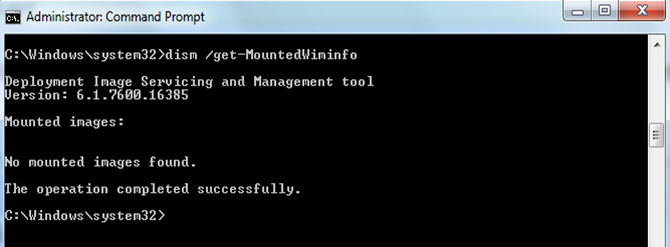
DISM provides you an option to load Wim images onto your local drive and the service it offline. You can either add/remove a driver, enable/disable features, perform other customizations..without even installing them on a physical box. Now when you have mounted a Wim image, its really necessary to check if the image is mounted correctly. you can do that by running the command,  dism /get-MountedWiminfo.


Check the Status. If the Status is OK, then everything is good. If the Status is anything else., for eg: Needs Remount, Status Un-available, Invalid.. etc.. Its an indication that, you gotta’ remount (repair) the image. In this article, you will know how to Unmount, clean and remount a Wim image using the DISM tool.   


The screenshot above shows the mounted image status as “Invalid”.  This means that the mount point is corrupted and there may be resources associated with the mounted image that has been abandoned.  The cleanup command does not unmount a mounted image, nor does it delete images that can be recovered using the remount command.  You can use the cleanup command to delete these abandoned resources.  You can cleanup using the command syntax: dism /cleanup-wim


If the mounted image status shows as “Need-Remount”, you can run the remount command to recover the orphaned mount path.


Re-Mounting a Wim Image


When you have an issue with the mounted images as seen above, you will need have a need to re-mount the images which are mounted. This command will recover an orphaned Wim mount directory. You can re-mount using the command syntax.  dism /remount-wim /MountDir:<mountDir>


Un-Mounting a Wim Image


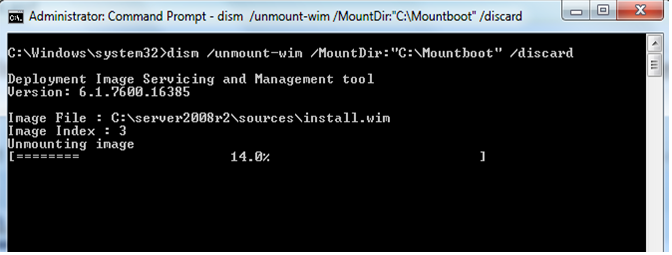
Once you are done with Servicing the Wim Image, you can unmount the image from your machine. Most of the IT Pros have asked this, what if they have forgot to save the changes, before they unmount. Thats how the DISM team has added this switch either to commit or discard the changes.  dism /unmount-Wim  /MountDir:<mountDir> /commit


Changes to WIM files are not “committed” until you do so specifically. You have three choices:


Unmount the image using the /Commit option (to save changes)


Use the /Commit option without unmounting (this keeps the image open so you can make more changes).


Unmount the image and use the /Discard option. In this case the image in the WIM file will be unchanged. This is used primarily as a manual “undo” of your changes.


 Cleaning up all Mounted Wim Images


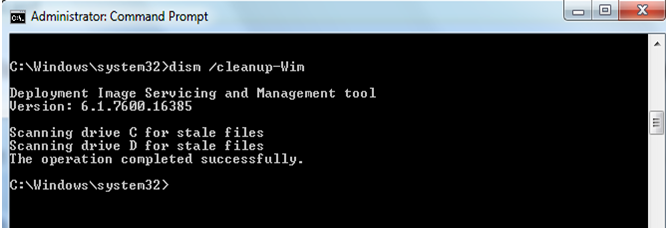
This operation will search for all the staleg up all Mounted Wim Images

or corrupted files in your machine and clean it up! – dism /cleanup-wim

The /Cleanup-Wim command is only used if there is any issue with the mount points, that means when any of the mounted images are shown as in the “Invalid” state.  You can run the cleanup command to delete these abandoned resources at the corrupted mount points.  There is no need to run the cleanup command every time when you are done with servicing the mounted images, but only when you run the /get-mountedwiminfo command and found that there are some mounted images showing the “Invalid” status. (as shown in the first screenshot in this article)


Since cleanup command only needs to be run when the /get-mountedwiminfo shows any mounted images in “Invalid” state, and the cleanup command does not unmount a mounted image, nor does it delete images that can be recovered using the remount command, running the /get-mountedwiminfo command after running the /cleanup-wim command usually still shows the mounted images with status no longer in the “Invalid” state instead of no mounted images as shown in the snapshot above.  Note that is very rare that a mounted images will be in the “Invalid” state, since it is rare that a mount point will become corrupted unless something weird has happened to the host system!


Saturday, October 8, 2011

GPEdit.MSC – Doesn’t show changes made to the registry?

GPEdit.MSC – Doesn’t show changes made to the registry?
That’s a question that came up a couple of times in the past, so I thought I’d write a few words about it. The question is:


“When I make changes to the registry that correspond to a Group Policy Setting, why doesn’t show GPEdit.msc (the GPEditor) the changed setting?”

That is due to how Windows applies GP settings to the registry.

What GPEdit writes and reads is not the registry directly but a intermediate file, called the Registry.POL. The POL file stores the changes and registry values that get incorporated by the Registry CSE (well, there’s some involvement with the ntuser.dat but that’s a different story). The point is that GPEdit reads/writes Registry.POL and the CSE is using that Registry.POL file to read the registry configuration off the the file to put it into the registry.

When making changes to the registry, the Registry CSE doesn’t care about the current state of the registry keys and values it changes - it just applies the settings governed by the POL file. In fact, it does wipe all values in the “four” special POLICY-hives and re-creates them according to the POL file. So - changes you make to the Registry are not carried out back to the POL file and therefore, GPEdit won’t look find them there.

What you will always see in GPEdit is what is configured in the Registry.POL file.

Saturday, September 17, 2011

Complete List of Canonical Names of Control Panel Items

Canonical Names of Control Panel Items

As of Windows Vista, each Control Panel item is given a canonical name for use in programmatically launching that item. This topic lists each Control Panel item, its canonical name, and its GUID.

Windows 7 Control Panel Canonical Names

The following canonical names are defined for Control Panel items in Windows 7. All names are also valid on Windows Vista unless specified otherwise. Not all Control Panel items are available on all varieties of Windows and some Control Panel items might appear only when appropriate hardware is detected. These canonical names do not change for different languages. They are always in English, even if the system's language is non-English.


Control Panel ItemCanonical nameGUID
Action CenterMicrosoft.ActionCenter (Windows 7 and later only){BB64F8A7-BEE7-4E1A-AB8D-7D8273F7FDB6}
Administrative ToolsMicrosoft.AdministrativeTools{D20EA4E1-3957-11d2-A40B-0C5020524153}
AutoPlayMicrosoft.AutoPlay{9C60DE1E-E5FC-40f4-A487-460851A8D915}
Backup and RestoreMicrosoft.BackupAndRestore (Windows 7 and later only){B98A2BEA-7D42-4558-8BD1-832F41BAC6FD}
Biometric DevicesMicrosoft.BiometricDevices (Windows 7 and later only){0142e4d0-fb7a-11dc-ba4a-000ffe7ab428}
BitLocker Drive EncryptionMicrosoft.BitLockerDriveEncryption{D9EF8727-CAC2-4e60-809E-86F80A666C91}
Color ManagementMicrosoft.ColorManagement{B2C761C6-29BC-4f19-9251-E6195265BAF1}
Credential ManagerMicrosoft.CredentialManager (Windows 7 and later only){1206F5F1-0569-412C-8FEC-3204630DFB70}
Date and TimeMicrosoft.DateAndTime{E2E7934B-DCE5-43C4-9576-7FE4F75E7480}
Default LocationMicrosoft.DefaultLocation (Windows 7 and later only){00C6D95F-329C-409a-81D7-C46C66EA7F33}
Default ProgramsMicrosoft.DefaultPrograms{17cd9488-1228-4b2f-88ce-4298e93e0966}
Desktop GadgetsMicrosoft.DesktopGadgets (Windows 7 and later only){37efd44d-ef8d-41b1-940d-96973a50e9e0}
Device ManagerMicrosoft.DeviceManager{74246bfc-4c96-11d0-abef-0020af6b0b7a}
Devices and PrintersMicrosoft.DevicesAndPrinters (Windows 7 and later only){A8A91A66-3A7D-4424-8D24-04E180695C7A}
DisplayMicrosoft.Display (Windows 7 and later only){C555438B-3C23-4769-A71F-B6D3D9B6053A}
Ease of Access CenterMicrosoft.EaseOfAccessCenter{D555645E-D4F8-4c29-A827-D93C859C4F2A}
Folder OptionsMicrosoft.FolderOptions{6DFD7C5C-2451-11d3-A299-00C04F8EF6AF}
FontsMicrosoft.Fonts{93412589-74D4-4E4E-AD0E-E0CB621440FD}
Game ControllersMicrosoft.GameControllers{259EF4B1-E6C9-4176-B574-481532C9BCE8}
Get ProgramsMicrosoft.GetPrograms{15eae92e-f17a-4431-9f28-805e482dafd4}
Getting StartedMicrosoft.GettingStarted (Windows 7 and later only){CB1B7F8C-C50A-4176-B604-9E24DEE8D4D1}
HomeGroupMicrosoft.HomeGroup (Windows 7 and later only){67CA7650-96E6-4FDD-BB43-A8E774F73A57}
Indexing OptionsMicrosoft.IndexingOptions{87D66A43-7B11-4A28-9811-C86EE395ACF7}
InfraredMicrosoft.Infrared (Windows 7 and later only){A0275511-0E86-4ECA-97C2-ECD8F1221D08}
Internet OptionsMicrosoft.InternetOptions{A3DD4F92-658A-410F-84FD-6FBBBEF2FFFE}
iSCSI InitiatorMicrosoft.iSCSIInitiator{A304259D-52B8-4526-8B1A-A1D6CECC8243}
KeyboardMicrosoft.Keyboard{725BE8F7-668E-4C7B-8F90-46BDB0936430}
Location and Other SensorsMicrosoft.LocationAndOtherSensors (Windows 7 and later only){E9950154-C418-419e-A90A-20C5287AE24B}
MouseMicrosoft.Mouse{6C8EEC18-8D75-41B2-A177-8831D59D2D50}
Network and Sharing CenterMicrosoft.NetworkAndSharingCenter{8E908FC9-BECC-40f6-915B-F4CA0E70D03D}
Notification Area IconsMicrosoft.NotificationAreaIcons (Windows 7 and later only){05d7b0f4-2121-4eff-bf6b-ed3f69b894d9}
Offline FilesMicrosoft.OfflineFiles{D24F75AA-4F2B-4D07-A3C4-469B3D9030C4}
Parental ControlsMicrosoft.ParentalControls{96AE8D84-A250-4520-95A5-A47A7E3C548B}
Pen and TouchMicrosoft.PenAndTouch (Windows 7 and later only){F82DF8F7-8B9F-442E-A48C-818EA735FF9B}
People Near MeMicrosoft.PeopleNearMe{5224F545-A443-4859-BA23-7B5A95BDC8EF}
Performance Information and ToolsMicrosoft.PerformanceInformationAndTools{78F3955E-3B90-4184-BD14-5397C15F1EFC}
PersonalizationMicrosoft.Personalization{ED834ED6-4B5A-4bfe-8F11-A626DCB6A921}
Phone and ModemMicrosoft.PhoneAndModem (Windows 7 and later only){40419485-C444-4567-851A-2DD7BFA1684D}
Power OptionsMicrosoft.PowerOptions{025A5937-A6BE-4686-A844-36FE4BEC8B6D}
Programs and FeaturesMicrosoft.ProgramsAndFeatures{7b81be6a-ce2b-4676-a29e-eb907a5126c5}
RecoveryMicrosoft.Recovery (Windows 7 and later only){9FE63AFD-59CF-4419-9775-ABCC3849F861}
Region and LanguageMicrosoft.RegionAndLanguage (Windows 7 and later only){62D8ED13-C9D0-4CE8-A914-47DD628FB1B0}
RemoteApp and Desktop ConnectionsMicrosoft.RemoteAppAndDesktopConnections (Windows 7 and later only){241D7C96-F8BF-4F85-B01F-E2B043341A4B}
Scanners and CamerasMicrosoft.ScannersAndCameras{00f2886f-cd64-4fc9-8ec5-30ef6cdbe8c3}
SoundMicrosoft.Sound (Windows 7 and later only){F2DDFC82-8F12-4CDD-B7DC-D4FE1425AA4D}
Speech RecognitionMicrosoft.SpeechRecognition (Windows 7 and later only){58E3C745-D971-4081-9034-86E34B30836A}
Sync CenterMicrosoft.SyncCenter{9C73F5E5-7AE7-4E32-A8E8-8D23B85255BF}
SystemMicrosoft.System{BB06C0E4-D293-4f75-8A90-CB05B6477EEE}
Tablet PC SettingsMicrosoft.TabletPCSettings{80F3F1D5-FECA-45F3-BC32-752C152E456E}
Taskbar and Start MenuMicrosoft.TaskbarAndStartMenu{0DF44EAA-FF21-4412-828E-260A8728E7F1}
Text to SpeechMicrosoft.TextToSpeech{D17D1D6D-CC3F-4815-8FE3-607E7D5D10B3}
TroubleshootingMicrosoft.Troubleshooting (Windows 7 and later only){C58C4893-3BE0-4B45-ABB5-A63E4B8C8651}
User AccountsMicrosoft.UserAccounts{60632754-c523-4b62-b45c-4172da012619}
Windows Anytime UpgradeMicrosoft.WindowsAnytimeUpgrade{BE122A0E-4503-11DA-8BDE-F66BAD1E3F3A}
Windows CardSpaceMicrosoft.CardSpace{78CB147A-98EA-4AA6-B0DF-C8681F69341C}
Windows DefenderMicrosoft.WindowsDefender{D8559EB9-20C0-410E-BEDA-7ED416AECC2A}
Windows FirewallMicrosoft.WindowsFirewall{4026492F-2F69-46B8-B9BF-5654FC07E423}
Windows Mobility CenterMicrosoft.MobilityCenter{5ea4f148-308c-46d7-98a9-49041b1dd468}
Windows SideShowMicrosoft.WindowsSideShow{E95A4861-D57A-4be1-AD0F-35267E261739}
Windows UpdateMicrosoft.WindowsUpdate{36eef7db-88ad-4e81-ad49-0e313f0c35f8}


Friday, September 16, 2011

Finding that specific Group Policy Setting

Have you found yourself searching for the right place whenever your in a stituation where you need a specific Windows setting, an Office behavior or a third party application – and you want to control that with Group Policy?  How do you know if there’s a GPO for what you need and where it’s located?

Well, there are a couple of steps you can use.
Check whether there’s a built-in GPO

Your first step probably is to check if there’s a ready-to-go GPO you can deploy. For that, you can fire up GPMC and check there. But other than browsing through the GPEditor tree or using the GPMC search, there are other two additional options. Those are good when you are with a customer and can’t get your hands on a machine with GPMC loaded. The first option is one of the coolest Azure apps I’ve seen: http://gps.cloudapp.net. GPS stands for Group Policy Search – you can search for GPOs by name or browse the GPO tree “virtually”. You can get it from any machine with internet access. If you’re more the download-n-go kind of guy, someone who sticks with references, there’s a GPO reference Excel spreadsheet: http://www.microsoft.com/downloads/en/details.aspx?FamilyID=18c90c80-8b0a-4906-a4f5-ff24cc2030fb&displaylang=en. They contain the setting names, the registry location the settings change, the path to browse and the “supported on” information. All searchable – and filterable, excel-like. That should get you going.

By now, you should know if there’s a built-in GPO you can use. In case you found what you were searched, consider yourself done with this article. If not, read on.
Check whether there’s a custom ADM(X) template

So no luck with the built-in stuff. Good thing there’s the community and fine places you can find and download ADM(X) templates from. ADM(X) templates are simply templates you can add to Group Policy Editor – based on the information in the template, the correct registry settings are forced on the client. Reading this, you probably noticed that this only works for registry settings, so it’ll only add “Administrative Templates” settings. There are ADM template files for pre-Vista GPMC administrators and ADMX template files for Vista+ GPMC administrators. Vista+ GPMC understands ADM, too, but XP’s GPMC only eats ADM template files. So be sure to search and find for the correct format.

For Microsoft Office, there are downloadable ADM(X) template files around: http://www.microsoft.com/downloads/en/details.aspx?displaylang=en&FamilyID=92d8519a-e143-4aee-8f7a-e4bbaeba13e7 and http://www.microsoft.com/downloads/en/details.aspx?FamilyID=64b837b6-0aa0-4c07-bc34-bec3990a7956&displaylang=en. No biggie to find them. ADM templates can be imported in GP Editor by clicking the “Administrative Templates” node and choosing “Add/Remove template”. For ADMX, you’ll have to either copy the files to the CentralStore or to the local PolicyDefinitions folder and re-open the GPEditor. It appears that I have created a link list for ADM template files in the past: http://www.frickelsoft.net/blog/?p=38, you may find other ADM template using Bing or Google or any other search engine. If you’re familiar with German, at least a bit, you can check Mark Heitbrink’s Group Policy site in German. He has a ton of ADM template files you can download and adjust: http://www.gruppenrichtlinien.de/index.html?/adm/Beispiele.htm. #24 for Adobe Reader is a real pearl :-) Also, I’ve found http://www.appdeploy.com has some good tips for you. They not only have tips and tricks about zero-touch installations, unattended installer packages and script installations, I’ve seen a couple of good ADM templates there. Worth a try!
Tracing the software setting’s steps

Still not lucky? Okay, time to get our hands dirty. When you change a setting, close the application and re-open it, the setting needs to get stored somewhere. Pretty likely that’s some place in the registry or some ugly .ini file. You only need to find where. There are tools that help you with that. Regshot is one of these great tools for free. You create a “before” snapshot of the registry, then open your app, change the setting, close it and make a “after” snapshot. You then compare the two and find the changes the software setting obviously had to make: http://sourceforge.net/projects/regshot/. There are other tools out there. Process Monitor (formerly FileMon and Regmon) is a great tool that helps you trace file and registry operations and filter for applications: http://technet.microsoft.com/en-us/sysinternals/bb795533.

Once you’ve found the location and the values a switch flip in your application changes, you’ll just have to deploy them via Group Policy. There are numerous ways – but today, you don’t want to use most them anymore. For a registry change, you can

(1) Write a custom ADM template file and import it: http://gandalf50.wordpress.com/2011/09/09/modifying-the-office-2010-adm-templates-to-allow-more-trusted-locations/
(2) Create a registry export on a sample machine and import it via a script: “regedit.exe /s myReg.reg”
(3) Use GP Preferences Registry settings to deploy the changes all at once!

Clearly, option 3 is the way to go. Creating custom ADM templates is… well, not too easy. Scripting is … yeah, so 1990.


Thursday, September 15, 2011

How to Add AD user accounts or groups into the local Administrators group with GPO

How to use Restricted Groups?
( - or: How to Add AD user accounts or groups into the local Administrators group with GPO)


This article describes the feature “Restricted Groups” in Group Policy. This feature enables you - as the administrator - to configure group memberships on the client computers or member servers. You can add user accounts to groups on client machines that are in the scope of the policy.

As there are many questions about this in the newsgroups, I will come up with an example that shows how to put a group of Active Directory users into the local Administrators group on the clients.

For this article, I assume that you already created a global security group containing all users that shall become local Administrators on some client computers. In my example, the group is called “localAdmins”. The target (= client) computers reside in a specific OU.

If you’re using the Group Policy Editor, you navigate to the OU where the client computers reside and right-click it. Choose “Properties” and “Group Policy” where you create a new Policy and click “Edit”. You then navigate to:

Computer ConfigurationWindows SettingsSecurity Settings and then right-click “Restricted Groups” and choose “Add Group”.


You simply add the created group by clicking You simply add the created group by clicking “Browse..” or typing the group name into the box.


After clicking “OK”, another  window opens up, where you can find two boxes. The upper box, saying “Members of this group”, the lower one saying “This group is a member of”. In my case above I am adding a group called TechSupport.


If you added users or groups into the “Members of this group” box, you would advise the Restricted Groups feature to put the users and groups you selected into the localAdmins group. Restricted Groups would then replace the current members of the localAdmins group with the users and groups you filled into the box. Please understand that it replace them by wipeing existing users out of the local Admins group.

Since we do not want to add users or other groups to our existing group, but instead want to add a new  group to the local Administrators group on all of our clients, we have a look at the lower box - labeled “This group is member of”. We click “Add” and type in the name of the group that  we want  added to the localAdmins on each client. In this case, it's “Administrators”. We then simply click “OK” and “Apply” and close all windows. “This group is member of” advices “Restricted Groups” to add our localAdmins group into the “Administrators” group of the clients. The existing group members will not be touched - it simply adds in this case  the TechSupport group to every clients local administrators group.


Monday, September 12, 2011

You experience a long domain logon time in Windows 7 or in Windows Server 2008 R2 after you deploy Group Policy preferences to the computer

“You experience a long domain logon time in Windows 7 or in Windows Server 2008 R2 after you deploy Group Policy preferences to the computer“, http://support.microsoft.com/?kbid=2561285

There’s a hotfix for Win7 and Server 2008 R2 available.