popunder new

https://www.blogger.com/blog/posts/1739890295310631346
Showing posts with label Scripts. Show all posts

Friday, January 13, 2012

Installing the Active Directory Module for Windows PowerShell 2.0

With the release of PowerShell 2.0, we now have a PowerShell module that we can use to administer Active Directory. The Active Directory Module for Windows PowerShell runs on Windows Server 2008 R2 and on Windows 7 and relies on a web service that is hosted on one or more domain controllers in your environment. In this post I'll go over what you need in order to install and use the Active Directory Module for PowerShell, also known as AD PowerShell.
 

Setting up your Domain Controllers

In order to use the Active Directory Module for Windows PowerShell on 2008 R2 and Windows 7, you first need to be running Active Directory Web Services (ADWS) on at least one Domain Controller. To install Active Directory Web Services (ADWS) you'll need one of the following:

1. Windows Server 2008 R2 AD DS

You can load Active Directory Web Services (ADWS) on a Windows Server 2008 R2 Domain Controller when you install the AD DS role. The AD PowerShell module will also be installed during this process. Active Directory Web Services (ADWS) will be enabled when you promote the server to a DC using DCPromo.

2. Active Directory Management Gateway Service

If you cannot run Windows Server 2008 R2 Domain Controllers, you can install the Active Directory Management Gateway Service. Installing this will allow you to run the same Active Directory web service that runs on Windows Server 2008 R2 DC's. You can download the Active Directory Management Gateway Service here. Make sure you read the instructions carefully, there are several hotfixes that need to be applied depending on the version of Windows you are running. You can install the Active Directory Management Gateway Service on DC's running the following operating systems:
  • Windows Server 2003 R2 with Service Pack 2
  • Windows Server 2003 SP2
  • Windows Server 2008
  • Windows Server 2008 SP2
Note: You can also use AD PowerShell to manage AD LDS instances on Windows Server 2008 R2. If you plan on using AD LDS, Active Directory web services will be installed with the AD LDS role, the AD PowerShell module will also be installed during this process. The ADWS service will be enabled when your LDS instance is created.

Once you've got Active Directory web services up and running on your Domain Controller(s), you'll notice you now have an ADWS service as shown here:
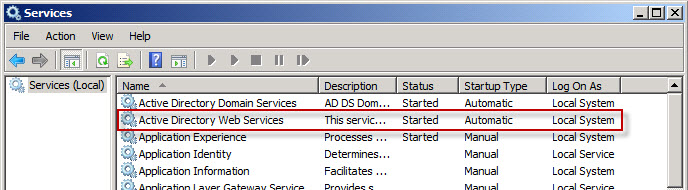


At this point, you should be ready to install the AD PowerShell module. You can run AD PowerShell on all versions of Windows Server 2008 R2 (except the Web Edition) and on Windows 7.

Installing the Active Directory Module for Windows PowerShell on 2008 R2 member servers

You can install the Active Directory Module on Windows 2008 R2 member servers by adding the RSAT-AD-PowerShell feature using the Server Manager. I usually use the ServerManager module to do this because it is quick and easy. To install the feature using the ServerManager module, launch PowerShell and run the following commands:

Import-Module ServerManager
Add-WindowsFeature RSAT-AD-PowerShell



Remember, this only needs to be done on Windows Server 2008 R2 member servers. The RSAT-AD-PowerShell feature will be added to 2008 R2 DC's during the DCPromo process.

Installing the Remote Server Administration Tools (RSAT) feature on Windows 7

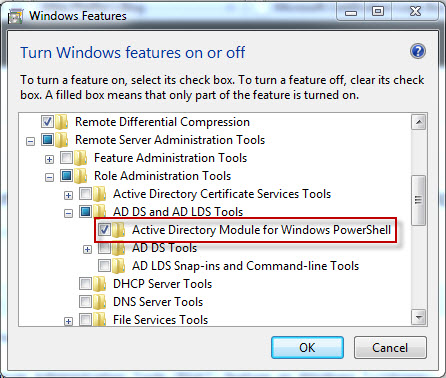
In order to install the Active Directory Module for Windows PowerShell you need to download the RSAT tools for Windows 7 here. Once this is installed you are still not finished, you need to enable the Active Directory module. Navigate to Control Panel > Programs and Features > Turn Windows Features On or Off and select Active Directory Module for Windows PowerShell as show here:


Once you have Active Directory web services running on at least one domain controller and the AD PowerShell module is installed, you are ready to run the AD PowerShell module. You can do this in one of two ways. First, you can access the "Active Directory Module for Windows PowerShell" shortcut in Administrative Tools as shown here:
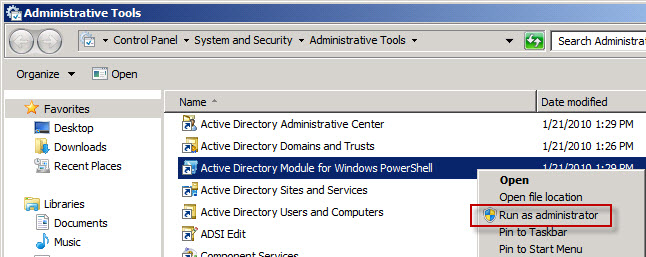


Right click the shortcut and select "Run as administrator" in order to start PowerShell with elevated permissions.

You can also simply import the AD PowerShell module in your existing PowerShell session. Just use the Import-Module ActiveDirectory command:

Import-Module ActiveDirectory



That's all that needs to be done to get up and running.

 
Below is a list of the new AD cmdlets that will be available and a synopsis of what they do.

NameCategorySynopsis
Add-ADComputerServiceAccountCmdletAdds one or more service accounts to an Active Directory computer.
Add-ADDomainControllerPasswordReplicationPolicyCmdletAdds users, computers, and groups to the allowed or denied list of a read-only domain controller password replication policy.
Add-ADFineGrainedPasswordPolicySubjectCmdletApplies a fine-grained password policy to one more users and groups.
Add-ADGroupMemberCmdletAdds one or more members to an Active Directory group.
Add-ADPrincipalGroupMembershipCmdletAdds a member to one or more Active Directory groups.
Clear-ADAccountExpirationCmdletClears the expiration date for an Active Directory account.
Disable-ADAccountCmdletDisables an Active Directory account.
Disable-ADOptionalFeatureCmdletDisables an Active Directory optional feature.
Enable-ADAccountCmdletEnables an Active Directory account.
Enable-ADOptionalFeatureCmdletEnables an Active Directory optional feature.
Get-ADAccountAuthorizationGroupCmdletGets the accounts token group information.
Get-ADAccountResultantPasswordReplicationPolicyCmdletGets the resultant password replication policy for an Active Directory account.
Get-ADComputerCmdletGets one or more Active Directory computers.
Get-ADComputerServiceAccountCmdletGets the service accounts hosted by a computer.
Get-ADDefaultDomainPasswordPolicyCmdletGets the default password policy for an Active Directory domain.
Get-ADDomainCmdletGets an Active Directory domain.
Get-ADDomainControllerCmdletGets one or more Active Directory domain controllers based on discoverable services criteria, search parameters or by providing a domain controller identifier, such as the NetBIOS name.
Get-ADDomainControllerPasswordReplicationPolicyCmdletGets the members of the allowed list or denied list of a read-only domain controller's password replication policy.
Get-ADDomainControllerPasswordReplicationPolicyUsageCmdletGets the Active Directory accounts that are authenticated by a read-only domain controller or that are in the revealed list of the domain controller.
Get-ADFineGrainedPasswordPolicyCmdletGets one or more Active Directory fine grained password policies.
Get-ADFineGrainedPasswordPolicySubjectCmdletGets the users and groups to which a fine grained password policy is applied.
Get-ADForestCmdletGets an Active Directory forest.
Get-ADGroupCmdletGets one or more Active Directory groups.
Get-ADGroupMemberCmdletGets the members of an Active Directory group.
Get-ADObjectCmdletGets one or more Active Directory objects.
Get-ADOptionalFeatureCmdletGets one or more Active Directory optional features.
Get-ADOrganizationalUnitCmdletGets one or more Active Directory organizational units.
Get-ADPrincipalGroupMembershipCmdletGets the Active Directory groups that have a specified user, computer, group, or service account.
Get-ADRootDSECmdletGets the root of a Directory Server information tree.
Get-ADServiceAccountCmdletGets one or more Active Directory service accounts.
Get-ADUserCmdletGets one or more Active Directory users.
Get-ADUserResultantPasswordPolicyCmdletGets the resultant password policy for a user.
Install-ADServiceAccountCmdletInstalls an Active Directory service account on a computer.
Move-ADDirectoryServerCmdletMoves a directory server in Active Directory to a new site.
Move-ADDirectoryServerOperationMasterRoleCmdletMoves operation master roles to an Active Directory directory server.
Move-ADObjectCmdletMoves an Active Directory object or a container of objects to a different container or domain.
New-ADComputerCmdletCreates a new Active Directory computer.
New-ADFineGrainedPasswordPolicyCmdletCreates a new Active Directory fine grained password policy.
New-ADGroupCmdletCreates an Active Directory group.
New-ADObjectCmdletCreates an Active Directory object.
New-ADOrganizationalUnitCmdletCreates a new Active Directory organizational unit.
New-ADServiceAccountCmdletCreates a new Active Directory service account.
New-ADUserCmdletCreates a new Active Directory user.
Remove-ADComputerCmdletRemoves an Active Directory computer.
Remove-ADComputerServiceAccountCmdletRemoves one or more service accounts from a computer.
Remove-ADDomainControllerPasswordReplicationPolicyCmdletRemoves users, computers and groups from the allowed or denied list of a read-only domain controller password replication policy.
Remove-ADFineGrainedPasswordPolicyCmdletRemoves an Active Directory fine grained password policy.
Remove-ADFineGrainedPasswordPolicySubjectCmdletRemoves one or more users from a fine grained password policy.
Remove-ADGroupCmdletRemoves an Active Directory group.
Remove-ADGroupMemberCmdletRemoves one or more members from an Active Directory group.
Remove-ADObjectCmdletRemoves an Active Directory object.
Remove-ADOrganizationalUnitCmdletRemoves an Active Directory organizational unit.
Remove-ADPrincipalGroupMembershipCmdletRemoves a member from one or more Active Directory groups.
Remove-ADServiceAccountCmdletRemove an Active Directory service account.
Remove-ADUserCmdletRemoves an Active Directory user.
Rename-ADObjectCmdletChanges the name of an Active Directory object.
Reset-ADServiceAccountPasswordCmdletResets the service account password for a computer.
Restore-ADObjectCmdletRestores an Active Directory object.
Search-ADAccountCmdletGets Active Directory user, computer, or service accounts.
Set-ADAccountControlCmdletModifies user account control (UAC) values for an Active Directory account.
Set-ADAccountExpirationCmdletSets the expiration date for an Active Directory account.
Set-ADAccountPasswordCmdletModifies the password of an Active Directory account.
Set-ADComputerCmdletModifies an Active Directory computer object.
Set-ADDefaultDomainPasswordPolicyCmdletModifies the default password policy for an Active Directory domain.
Set-ADDomainCmdletModifies an Active Directory domain.
Set-ADDomainModeCmdletSets the domain mode for an Active Directory domain.
Set-ADFineGrainedPasswordPolicyCmdletModifies an Active Directory fine grained password policy.
Set-ADForestCmdletModifies an Active Directory forest.
Set-ADForestModeCmdletSets the forest mode for an Active Directory forest.
Set-ADGroupCmdletModifies an Active Directory group.
Set-ADObjectCmdletModifies an Active Directory object.
Set-ADOrganizationalUnitCmdletModifies an Active Directory organizational unit.
Set-ADServiceAccountCmdletModifies an Active Directory service account.
Set-ADUserCmdletModifies an Active Directory user.
Uninstall-ADServiceAccountCmdletUninstalls an Active Directory service account from a computer.


Friday, December 23, 2011

VB Script to Remotely Start or Stop a windows service with get currentstate

This script will start or stop a service on a remote computer. It will optionally allow you to retrieve the current state of the service before and after you make a change. This is useful for verifying the state of the service before you make a change and to verify the change has been applied.

Download Button5

 dim svcName, sStart, sStop  
dim service
dim objService
dim SvrName
dim input
dim input2
Dim svclist
Dim compname
dim objFile
Set WshShell = WScript.CreateObject("WScript.Shell")
on error resume next
input = Inputbox ("Computer Name that you would like to Start or stop service on:"& vbCRLF & "Default is this pc", _
"Stop or Start service","localhost")
If input = "" Then
WScript.Quit
End If
returnvalue=MsgBox ("Do you want display a list of services on remote pc?"& vbCRLF & "List will show the Service Short Name, the current State and the Service Display Name", 36, "Show Services")
if returnvalue = 6 then
Const ForWriting = 2
Set objFSO = CreateObject("Scripting.FileSystemObject")
Set objTextFile = objFSO.OpenTextFile _
("c:services list.txt", ForWriting, True)
Set colServices = GetObject("winmgmts://" & input).ExecQuery _
("Select * from Win32_Service")
objTextFile.WriteLine("Short Name") & VbTab & ("Current State") & VbTab & VbTab & ("Display Name")
For Each objService in colServices
objTextFile.WriteLine(objService.Name & VbTab & _
objService.State & VbTab & VbTab & objService.DisplayName)
Next
objTextFile.Close
WScript.Sleep 500
wShshell.Run "notepad c:services list.txt"
WScript.Sleep 500
If input = "" Then
WScript.Quit
End If
input2 = Inputbox ("Enter the Service name you want to start or stop:" & vbCRLF & "Use the services list.txt file to get service short name if you don't know it." & vbCRLF & "print spooler = spooler" & vbCRLF & "remote registry = remoteregistry" & vbCRLF & "Windows Event log = eventlog"& vbCRLF & "Default is Print Spooler" & vbCRLF & "","Service Name","spooler")
If input2 = "" Then
WScript.Quit
End If
SvrName = input
svcName = input2
Set service = GetObject("winmgmts:!\" & svrName & "rootcimv2")
svc = "Win32_Service=" & "'" & svcName & "'"
state = inputbox _
("Enter start or stop to Change the Status of Service" & vbCRLF & "lowercase only" & vbCRLF & "Default is start","start or stop","start")
If state = "" Then
WScript.Quit
End If
if state = "start" then
Set objService = Service.Get(svc)
retVal = objService.StartService()
returnvalue=MsgBox ("Do you want re-open the services list.txt file and verify the state change?", 36, "Started the " & svcName & " service on " & SvrName)
if returnvalue = 6 then
Set objFSO = CreateObject("Scripting.FileSystemObject")
Set objTextFile = objFSO.OpenTextFile _
("c:services list.txt", ForWriting, True)
Set colServices = GetObject("winmgmts://" & input).ExecQuery _
("Select * from Win32_Service")
objTextFile.WriteLine("Short Name") & VbTab & ("Current State") & VbTab & ("Display Name")
For Each objService in colServices
objTextFile.WriteLine(objService.Name & VbTab & _
objService.State & VbTab & objService.DisplayName)
Next
objTextFile.Close
WScript.Sleep 500
wShshell.Run "notepad c:services list.txt"
WScript.Sleep 500
end if
WScript.Quit
elseif state = "stop" then
Set objService = Service.Get(svc)
retVal = objService.StopService()
end if
returnvalue=MsgBox ("Do you want re-open the services list.txt file and verify the state change?", 36, "Stopped the " & svcName & " service on " & SvrName)
if returnvalue = 6 then
Set objFSO = CreateObject("Scripting.FileSystemObject")
Set objTextFile = objFSO.OpenTextFile _
("c:services list.txt", ForWriting, True)
Set colServices = GetObject("winmgmts://" & input).ExecQuery _
("Select * from Win32_Service")
objTextFile.WriteLine("Short Name") & VbTab & ("Current State") & VbTab & ("Display Name")
For Each objService in colServices
objTextFile.WriteLine(objService.Name & VbTab & _
objService.State & VbTab & objService.DisplayName)
Next
objTextFile.Close
WScript.Sleep 500
wShshell.Run "notepad c:services list.txt"
WScript.Sleep 500
end if
WScript.Quit
end if

Friday, December 16, 2011

Open Outlook 2003, 2007, 2010 or 2013 secure temp olk folderlocation.vbs script

A useful script, especially for those high maintenance users who insist on editing excel or word documents they open from Outlook and then frantically calling your help desk complaining they can't locate files they saved while working in Outlook. Place the script on their desktop and have them run it first before calling your help desk.. Works with Outlook 2003, 2007, 2010 and now also with Outlook 2013.

Download Button5
 ' This script will open the Outlook Secure Temp folder location for Outlook   
' 2003, 2007, 2010 and 2013
Dim WshShell, strValue, openlocation
Set WshShell = WScript.CreateObject(“WScript.Shell”)
const HKEY_CURRENT_USER = &H80000001
on error resume next
strComputer = “.”
Set oReg=GetObject(“winmgmts:{impersonationLevel=impersonate}!\” &_
strComputer & “rootdefault:StdRegProv”)
strKeyPath = “SoftwareMicrosoftOffice11.0OutlookSecurity”
strValueName = “OutlookSecureTempFolder”
oReg.GetStringValue HKEY_CURRENT_USER,strKeyPath,strValueName,dwValue
If IsNull(dwValue) Then
Else
strKeyPath = “SoftwareMicrosoftOffice11.0OutlookSecurity”
strValueName = “OutlookSecureTempFolder”
oReg.GetStringValue HKEY_CURRENT_USER,strKeyPath,strValueName,strValue
openlocation = “EXPLORER.exe /e,” & strValue
wShshell.Run openlocation
End If
strKeyPath = “SoftwareMicrosoftOffice12.0OutlookSecurity”
strValueName = “OutlookSecureTempFolder”
oReg.GetStringValue HKEY_CURRENT_USER,strKeyPath,strValueName,dwValue
If IsNull(dwValue) Then
Else
strKeyPath = “SoftwareMicrosoftOffice12.0OutlookSecurity”
strValueName = “OutlookSecureTempFolder”
oReg.GetStringValue HKEY_CURRENT_USER,strKeyPath,strValueName,strValue
openlocation = “EXPLORER.exe /e,” & strValue
wShshell.Run openlocation
End If
strKeyPath = “SoftwareMicrosoftOffice14.0OutlookSecurity”
strValueName = “OutlookSecureTempFolder”
oReg.GetStringValue HKEY_CURRENT_USER,strKeyPath,strValueName,dwValue
If IsNull(dwValue) Then
Else
strKeyPath = “SoftwareMicrosoftOffice14.0OutlookSecurity”
strValueName = “OutlookSecureTempFolder”
oReg.GetStringValue HKEY_CURRENT_USER,strKeyPath,strValueName,strValue
openlocation = “EXPLORER.exe /e,” & strValue
wShshell.Run openlocation
End If
strKeyPath = “SoftwareMicrosoftOffice15.0OutlookSecurity”
strValueName = “OutlookSecureTempFolder”
oReg.GetStringValue HKEY_CURRENT_USER,strKeyPath,strValueName,dwValue
If IsNull(dwValue) Then
Else
strKeyPath = “SoftwareMicrosoftOffice15.0OutlookSecurity”
strValueName = “OutlookSecureTempFolder”
oReg.GetStringValue HKEY_CURRENT_USER,strKeyPath,strValueName,strValue
openlocation = “EXPLORER.exe /e,” & strValue
wShshell.Run openlocation
End If
WScript.Quit

Friday, December 9, 2011

Proxy On OFF Switch with get current state v2

A useful vbscript  for Laptop users who work in and out of the office and are behind a proxy server when in the office and are not when out of the office. For those users who have difficulty changing the settings manually through internet explorer this script can save them and your helpdesk invaluable amounts of time and headaches.
This script detects the current proxy state and depending on that sate prompts you to enable or disable it.
It also auomatically closes IE so the settings take effect immediately and then re- launches IE with the new settings.
The only variable thats needs to be changed is on line 37
Replace <Domain Proxy Server> with the IP or name of your domain proxy server without the brackets <> eg. ContosoProxy:80


Download Button5

  'Proxy On OFF Switch with get current state v2   
'Dec. 6, 2011
Set WshShell = WScript.CreateObject("WScript.Shell")
DimSetting = WshShell.RegRead ("HKCU\SOFTWARE\Microsoft\Windows\CurrentVersion\Internet Settings\ProxyEnable")
If DimSetting = 1 Then
'Wscript.Echo "Proxy is Currently Enabled"
returnvalue=MsgBox ("Do you want to DISABLE the Proxy?", 36, "Proxy state is Currently ENABLED")
if returnvalue = 6 then
' BEGIN CALLOUT A
WshShell.RegWrite "HKCU\Software\Microsoft\Windows\" & _
"CurrentVersion\Internet Settings\ProxyEnable", _
0, "REG_DWORD"
' END CALLOUT A
wShshell.Run "taskkill /im iexplore.exe",0,True
WScript.Sleep 500 'give kill time to take effect
'Inform User that the task is done.
Mybox = MsgBox("Proxy is now disabled" ,vbOkOnly,"Proxy is Disabled")
're-launch internet explorer
wShshell.Run "iexplore.exe"
End If
WScript.Quit
Else
'Wscript.Echo "Proxy is Currently Disabled"
End If
'On Error Resume Next
returnvalue=MsgBox ("Do you want to ENABLE the Proxy?", 36, "Proxy state is Currently DISABLED")
If returnvalue = "" Then
WScript.Quit
End If
if returnvalue = 6 then
' BEGIN CALLOUT A
'Replace <Domain Proxy Server> in line 50 with IP or your proxy server name without the <> eg. ContosoProxy:80
WshShell.RegWrite "HKCU\Software\Microsoft\Windows\" & _
"CurrentVersion\Internet Settings\ProxyEnable", _
1, "REG_DWORD"
WshShell.RegWrite "HKCU\Software\Microsoft\Windows\" & _
"CurrentVersion\Internet Settings\ProxyServer","<Domain Proxy Server>:80", "REG_SZ"
WshShell.RegWrite "HKCU\Software\Microsoft\Windows\" & _
"CurrentVersion\Internet Settings\ProxyOverride","<local>", "REG_SZ"
' END CALLOUT A
wShshell.Run "taskkill /im iexplore.exe",0,True
WScript.Sleep 500 'give kill time to take effect
'Inform User that the task is done.
Mybox = MsgBox("Proxy is enabled and set to enter your companies proxy server",vbOkOnly,"Proxy Enabled")
're-launch internet explorer
wShshell.Run "iexplore.exe"
End If
WScript.Quit

Sunday, December 4, 2011

Get and edit a remote computers hosts file

For those times when you don’t have easy access to computer and need to view its hosts file then the below script can come in handy.


Download Button5
 'script will get and allow you to edit a remote computers hosts file  
'it also changes the association for extensionless files like the hosts file to open with notepad
'Get and open Remote Computers Hosts file
on error resume next
Set WshShell = Wscript.CreateObject("Wscript.Shell")
strcomputer = inputbox("Enter remote computer name or leave as localhost for this computer","Get Hosts file","Localhost")
If strComputer = "" Then
WScript.Quit
End If
'Associate Extensionless Files with Notepad
wshShell.run "%comspec% /c c: & assoc .=txtfile"
WScript.Sleep 500 'give association time to take effect
'open hosts file on remote
wshShell.Run "\" & strcomputer & "c$WindowsSystem32driversetchosts"

Get a remote computers windowsupdate.log file

For those times when you don't have easy access to computer and need to view its windowsupdate.log to find out why updates are'nt being applied then the below script can come in handy.

Download Button5
 'This script will get a remote computers windowsupdate.log file  
'it also changes the association for .log files to open with notepad
'Get and open WindowsUpdate log file on remote Computer
on error resume next
Set WshShell = Wscript.CreateObject("Wscript.Shell")
strcomputer = inputbox("Enter remote computer name or leave as localhost for this computer","Get WindowsUpdate.log file","Localhost")
If strComputer = "" Then
WScript.Quit
End If
'Associate .log Files with Notepad
wshShell.run "%comspec% /c c: & assoc .log=txtfile"
WScript.Sleep 500 'give association time to take effect
'open WindowsUpdate.log file on remote computer
wshShell.Run "\" & strcomputer & "c$WindowsWindowsUpdate.log""

Saturday, September 3, 2011

Batch file to start or stop a service depending on its current state

This batch file will start or stop a service depending on its current state.
Just replace yourservice on line 5 and 16 with the name of the service you want  to stop or start.
 @ECHO OFF  
REM Checking Service state
REM replace yourservice below with the name of the service
net start yourservice 2>nul
if errorlevel 2 goto AlreadyRunning
if errorlevel 1 goto Error
REM Service started
GOTO ContinueWithBatch
:AlreadyRunning
REM Service is already running
REM replace yourservice below with the name of the service
net stop yourservice
GOTO ContinueWithBatch
:Error
REM Service failed to start
GOTO ContinueWithBatch
:ContinueWithBatch

Wednesday, August 31, 2011

VBS Script to force a Wsus update detection on a single computer

This script forces a Windows Update Detection immediately on single computer by inputing either its name or IP.
 ' Force a Windows Update Detection now on single computer by inputing name or IP of computer  
'Script is now ignoring errors. For those who wish to see errors just add a ' to the on error resume next below
on error resume next
strComputer = inputbox("Enter a computer name or IP address to run a WUA detection now","Invoke detectnow")
if strComputer = "" then wscript.quit
Set autoUpdateClient = CreateObject("Microsoft.Update.AutoUpdate",strComputer)
AutoUpdateClient.detectnow()
wscript.echo "All done."

Tuesday, August 30, 2011

VBS Script to Start the remote registry service

This script will allow you to start the Remote Registry Service on any computer by enering its name or IP
 ' RemoteRegistryservicestart.vbs   
' script to Start Remote Registry on strComputer
Option Explicit
Dim objWMIService, objItem, objService
Dim colListOfServices, strComputer, strService, strInput
strInput = False
' Creates the Input Message Box
Do
strComputer = InputBox("Which Machine? "_
," Remote Machine", strComputer)
If strComputer <> "" Then strInput = True
Loop Until strInput = True
' NB Spelling of RemoteRegistry (No space).
strService = " 'RemoteRegistry' "
Set objWMIService = GetObject("winmgmts:" _
& "{impersonationLevel=impersonate}!\" _
& strComputer & "rootcimv2")
Set colListOfServices = objWMIService.ExecQuery _
("Select * from Win32_Service Where Name ="_
& strService & " ")
For Each objService in colListOfServices
WSCript.Sleep 1500
objService.StartService()
Next
WScript.Echo "Started " & strService & " on " & strComputer
WScript.Quit

VBS Script to Find all Outlook pst files on C and D Drives

This script will find all the pst files on a computers C and D drive (if there is a D). It will create a folder in the root of C called pstlog and save in it the results file with the name pst_files_on_computername . Each pst file found will show its location, name and size. Depending on how many drives and there sizes this scriipt can take up to 10 minutes to complete. Be patient

 'Find all Outlook pst files on C and D Drives  
strComputer = "."
on error resume next
set wshnetwork=createobject("wscript.network")
scomputername=wshnetwork.computername
set wshnetwork=nothing
Const OverwriteExisting = True
Set objWMIService = GetObject("winmgmts:\" & strComputer & "rootcimv2")
Set colFiles = objWMIService.ExecQuery _
("Select * from CIM_DataFile Where Extension = 'pst' AND (Drive = 'C:' OR Drive = 'D:')")
If colFiles.Count = 0 Then
Wscript.Quit
End If
Set objFSO = CreateObject("Scripting.FileSystemObject")
Set objFolder = objFSO.CreateFolder("C:pstlog")
Set objTextFile = objFSO.CreateTextFile("c:pstlogpst_files_on_" & scomputername & ".txt " , True)
For Each objFile in colFiles
objTextFile.Write(objFile.Drive & objFile.Path & "")
objTextFile.Write(objFile.FileName & "." & objFile.Extension & ", Size ")
objTextFile.Write(objFile.FileSize /1024 & "kb" & vbCrLf)
Next
objTextFile.Close

VBS Script to enable or disable remote desktop on a remote system

For those times when you need to remote into a system and remote desktop is disabled, the below script can come in very handy.

 ' This script will enable or disable remote desktop on a remote system  
const HKEY_LOCAL_MACHINE = &H80000002
strComputer = InputBox("Enter the COMPUTER NAME of the system you would like to enable or disable Remote Desktop: leave as localhost for this computer","Enable or Disable Remote Desktop","Localhost")
If strComputer = "" Then
WScript.Quit
End If
Set StdOut = WScript.StdOut
On Error Resume Next
Set oReg=GetObject("winmgmts:{impersonationLevel=impersonate}!\" &_
strComputer & "rootdefault:StdRegProv")
If Err.Number <> 0 Then
WScript.Echo "An error has occurred. You may have mistyped the computer name."
WScript.Quit
End If
strKeyPath = "SYSTEMCurrentControlSetControlTerminal Server"
strValueName = "fDenyTSConnections"
oReg.GetDWORDValue HKEY_LOCAL_MACHINE,strKeyPath,strValueName,dwValue
If dwValue = 1 Then
prompt = MsgBox ("Remote Desktop is Currently disabled. Do you want to ENABLE it?", vbYesNo)
If prompt = vbYes then
dwValue = 0
oReg.SetDWORDValue HKEY_LOCAL_MACHINE,strKeyPath,strValueName,dwValue
WScript.Echo "Remote Desktop is now ENABLED on " & strComputer
WScript.Quit
ElseIf prompt = vbNo then
WScript.Echo "Remote Desktop is still DISABLED."
Wscript.Quit
End If
ElseIf dwValue = 0 then
prompt = MsgBox ("Remote Desktop is Currently ENABLED. Do you want to DISABLE it?", vbYesNo)
If prompt = vbYes then
dwValue = 1
oReg.SetDWORDValue HKEY_LOCAL_MACHINE,strKeyPath,strValueName,dwValue
WScript.Echo "Remote Desktop is now DISABLED on " & strComputer
WScript.Quit
ElseIf prompt = vbNo then
WScript.Echo "Remote Desktop is still ENABLED."
WScript.Quit
End If
End If

Tuesday, January 11, 2011

Enable or disable system restore on a remote computer

This script prompts for a remote pc name and then gives you the option to either enable or disable the system restore option.

Instructions:

1: Run the script

2: Enter the name or the ip address of the remote computer.

image

3: Select 1 to enable it or 2 to disable it.

image

I have tested the script on Windows 7 x86/x64. This must be run from an elevated command prompt. Domain Administrator permissions are required.

Download Button5

  'Enable or disable system restore on a remote system   
strComputer = InputBox("Enter the COMPUTER NAME or the IP address of the system you would like to enable or disable System Restore on. (use localhost for current system)","Remotely Enable or Disable System Restore","localhost")
If strComputer = "" Then
WScript.Quit
End If
strChoice = Inputbox ("System Restore:" & vbCrLf & vbCrLf & "1: Enable"& vbCrLf &"2: Disable" & vbCrLf& vbCrLf & vbCrLf & "Please enter 1 or 2 (leave blank to quit):","Enter 1 to Enable or 2 to Disable","")
If strChoice = "" Then
WScript.Quit
End If
if strChoice = 1 then
Set objWMIService = GetObject("winmgmts:" _
& "{impersonationLevel=impersonate}!\\" & strComputer & "\root\default")
Set objItem = objWMIService.Get("SystemRestore")
errResults = objItem.Enable("")
'Inform User that the task is done.
Mybox = MsgBox("System Restore is now enabled on "& strComputer &"" & vbCRLF ,vbOkOnly,"System Restore Enabled")
End If
if strChoice = 2 then
Set objWMIService = GetObject("winmgmts:" _
& "{impersonationLevel=impersonate}!\\" & strComputer & "\root\default")
Set objItem = objWMIService.Get("SystemRestore")
errResults = objItem.Disable("")
'Inform User that the task is done.
Mybox = MsgBox("System Restore is now disabled on "& strComputer &"" & vbCRLF ,vbOkOnly,"System Restore Disabled")
End If