popunder new

https://www.blogger.com/blog/posts/1739890295310631346
Showing posts with label Windows 8. Show all posts

Friday, January 10, 2014

Updated Win8PE now includes x86 & x64 versions

This is an updated version of my original x86 winpe8 found here plus a new x64 version.  This updated version includes the apps listed below as well as some new ones, like Internet Explorer 10 and ClamWin Antivirus.  I have also applied any new updates to all the portable apps. I am no longer including the ‘press any key’ version, since most users seemed to prefer the version that does not prompt to press a key
Google Chrome 31Internet Explorer 10
7ZipMBR Fix
ServiWinRegshot
Clamwin AntivirusANote
EraserFilezilla FTP
Foxit PDF ReaderIrfan View
Multi ResCC Cleaner
Process ExplorerProcess Hacker
Tree SizeProcess Monitor
IMDisk Virtual DiskDefraggler
DriveImage XMLDrive Snapshot
VLCVirtual Keyboard
All portable apps are listed in the Windows Start Menu under Portable Apps. If you prefer to use the Portable Apps menu instead then run the Portable Apps Menu shortcut on the taskbar.  The portable apps menu also allows you to download more apps by selecting the Apps>Get more apps. These freshly downloaded apps will only be available during the current session
portable apps menu

Screenshots

desktop
all programs menu
system info x86
system info x64


It’s a large download (550 – 750mb) so be patient it can take 10-20 minutes (depending on your internet speed) to download. After downloading burn the bootable ISO file to CD, USB or mount  the iso

Monday, April 29, 2013

Windows 8 based PE boot disk with explorer shell and many greatutilities

Update 07.09.13 The iso now includes two versions. One that requires the press any key and one that does not. Choose which ever suits your needs. Also fixed the desktop PE url and updated some of the portable apps.

This is my newly created customized Windows 8 PE x86 boot disk with windows 8 explorer shell and many great diagnostic and repair utilities. I have updated the iso  on 06.07.13 to include two imaging /cloning applications.  Drive Image XML and Drive Snapshot. Shortcuts for each  in the start menu and on the desktop. It iincludes the following open source free apps

Google Chrome 26Opera 12
7ZipMBR Fix
ServiWinRegshot
AMSNANote
EraserFilezilla FTP
Foxit PDF ReaderInfran View
Multi ResNotepad ++
Process ExplorerProcess Hacker
Tree SizeTweet Deck
IMDisk Virtual DiskDefraggler
DriveImage XMLDrive Snapshot
VLCVirtual Keyboard

All portable apps are listed in the Windows Start Menu under all programs.

image

If you prefer to use the Portable Apps menu instead then run the Portable Apps Menu shortcut on the desktop.  The portable apps menu also allows you to download more apps by selecting the Apps>Get more apps. These freshly downloaded apps will only be available during the current session.

image


Screenshots
image

 
image

 Download Button5

It’s a large download (about 500mb) so be patient it can take 10-20 minutes (depending on your internet speed) to download. After downloading burn either version of the bootable iso  file to CD, USB or mount  the iso.

Note:  To prevent its use as a pirated operating system, Windows PE automatically stops running the shell and reboots after 72 hours of continuous use. This time period is not configurable.

Wednesday, March 20, 2013

Waves Collection Windows Wallpaper Theme

This is my Windows 7/8 Waves Collection Windows Wallpaper Theme. After downloading double-click waves.themepack to install it.

Download Button5

Previews of the wave pictures in the theme

2-15-2013 2-48-10 AM

Tuesday, October 16, 2012

Restart Windows 8 or server 2012 in a remote desktop session

Restarting  Windows 8 or Server 2012 when in a remote desktop session


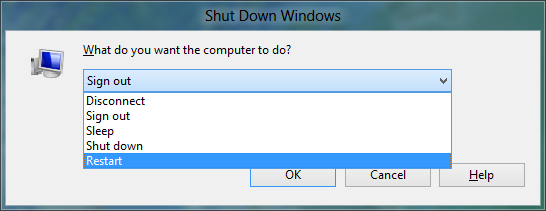
When you're in a remote desktop connection in Windows 8 or Server 2012 the quickest way to restart the PC is to go to the desktop and  press ALT-F4.   Pressing Alt-F4  inside an application will close that application, so make sure you are on the desktop.

The below Shut Down Windows screen will appear. Choose Restart to restart the system.

Sunday, August 12, 2012

Getting the New Windows 8 Remote Desktop client on your Windows 7 system

The Remote Desktop Client Connection Software that comes with Windows 8 or Windows Server 2012 features a new menu called the Remote Commands menu. This menu allows you to send special commands, such as a start menu, accessing the Windows 8 / Windows Server 2012 Charms, switching apps, snapping apps and application specific app commands.

If you are in a windowed remote desktop session you can access the remote commands by selecting the remote desktop icon and then choosing remote commands.


If you are running remote desktop full screen click the down arrow on the connection bar to display the remote commands.


If you can’t wait for Microsoft to publish a version of the new Remote Desktop client for windows 7, then all is not lost. There is a way for Admins still running windows 7 desktops to get the new version on their systems. You have to copy four files from a Windows 8 x64 or Server 2012 system to your windows 7 x64 system.  If using windows 7 x86 then copy the files from a windows 8 x86 system

  • mstsc.exe  (in c:windowssystem32)

  • mstscax.dll  (in c:windowssystem32)

  • mstsc.exe.mui  (in c:windowssystem32en-US)

  • mstscax.dll.mui  (in c:windowssystem32en-US)


Instead of overwriting the existing files on your windows 7 system (in case you ever want to revert back to the old version) create a new folder called Remote Desktop 8 anywhere on your system.  I put my folder on my desktop. Now copy mstsc.exe and mstscax.dll to that folder. Inside that folder create another folder called en-US and put the other two files into that. If you’re running a version that is not English then you will need to put the two mui files in the folder that corresponds to your language version.

Running mstsc.exe will now launch the new RDP client with the new remote commands on your Windows 7 system.

Or if you prefer you can download my installers that will automate the process for you.  Available for Windows 7 or Server 2008  in x86 and x64 versions.  English Only

Download Button5


The official Microsoft version has now been released. Check here for links and info or instead of downloading each file from the above link and running them individually get my MS Windows 8 RDP all-in-one combo updater package that automates the process into one installer.

Tuesday, March 6, 2012

Windows 8 Consumer Preview Keyboard Shortcut Keys and Mouse Keys Movements


Windows 8 Start Screen


Need to access new Windows 8 Start screen (pictured above) or toggle between the Start screen and an app? The new Start experience replaces the Start button we had on Windows 95 thru to Windows 7

Keyboard: Tap the Windows Key (WINKEY) on your keyboard, or CTRL + ESC.
Mouse: Mouse into the lower left corner of the screen to display the Start tip, and then click it.


Power Menu


The power menu gives you quick access to many commonly needed windows utilites (see picture)

Keyboard: WINKEY + X.

Mouse: Right-click the bottom left corner

Back to previous app


In Windows 8 you can move "back" to the previous app. You can invoke Back with the following input devices:

Keyboard: WINKEY + TAB (or WINKEY + SHIFT + TAB)

Mouse: Move the mouse cursor to the top left corner of the screen. A thumbnail of the previous app will appear. Click it to go Back.

Switching between windows


Switching between the currently running Metro apps and desktop applications. This  works in both the desktop and Metro. You invoke it as follows:

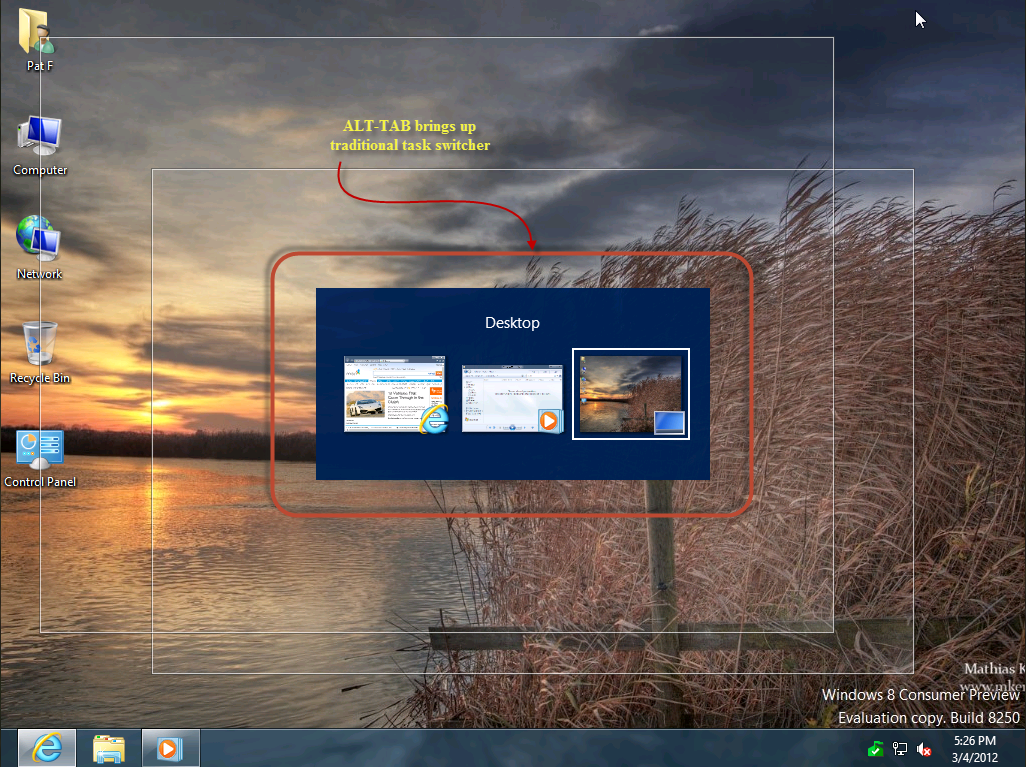
Keyboard: WINKEY + TAB (or WINKEY + SHIFT + TAB)  OR ALT + TAB (SHIFT +ALT + TAB )


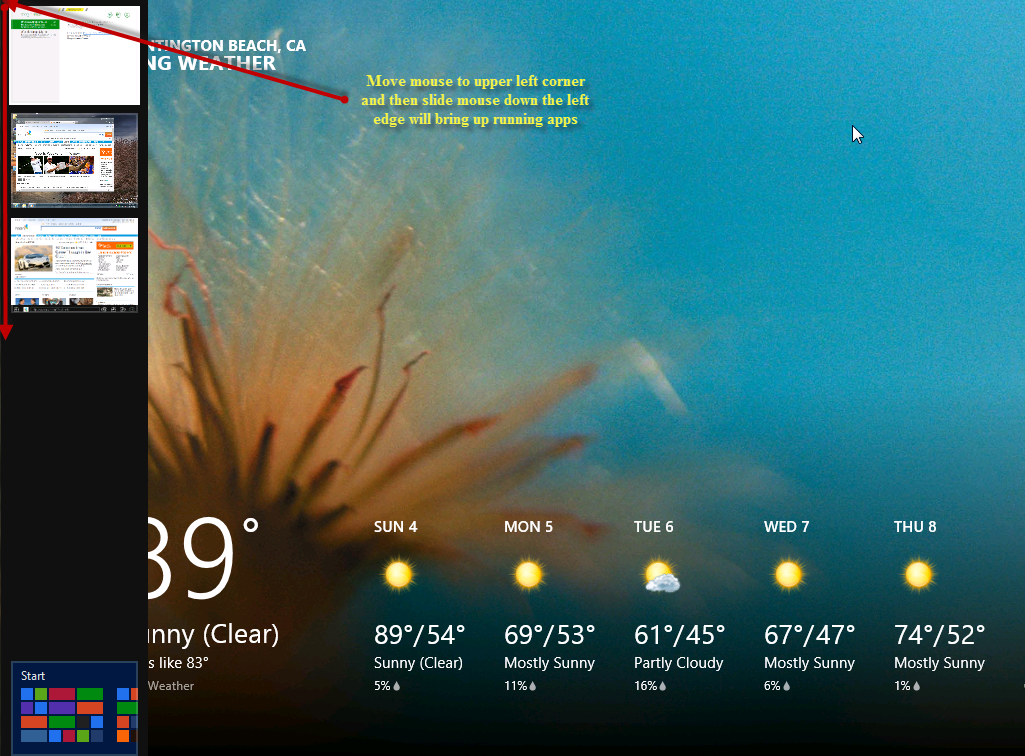
Mouse: Move the mouse cursor into the top left corner of the screen. When the thumbnail of the previous app appears, move down the left edge of the screen.


Switcher provides a vertical list of thumbnails representing all of the running apps and applications and, at the bottom, the Start screen. You can navigate between them until you find the one you want; select it, and that app will move to the forefront.
Switcher also lets you close running apps and applications. To do so, drag it out of Switcher and down to the bottom of the screen. (You can also drag thumbnails out of Switcher to utilize the side-by-side screen sharing feature described below.)