popunder new

https://www.blogger.com/blog/posts/1739890295310631346

Thursday, January 12, 2012

Installation and Configuration of the Windows Server 2008 SMTP Server Feature

Installing the SMTP Server Feature on Windows 2008 is an easy process requiring only few steps to complete. In this article I will describe the step by step configuration and installation of the SMTP Server feature and how to enable the smtp to relay from the local server.


Step 1:
Opening Server Manager Console and under Features select Add Features

Step 2:
Selecting SMTP Server option


Step 3:
Click on Install wait until finish and click close
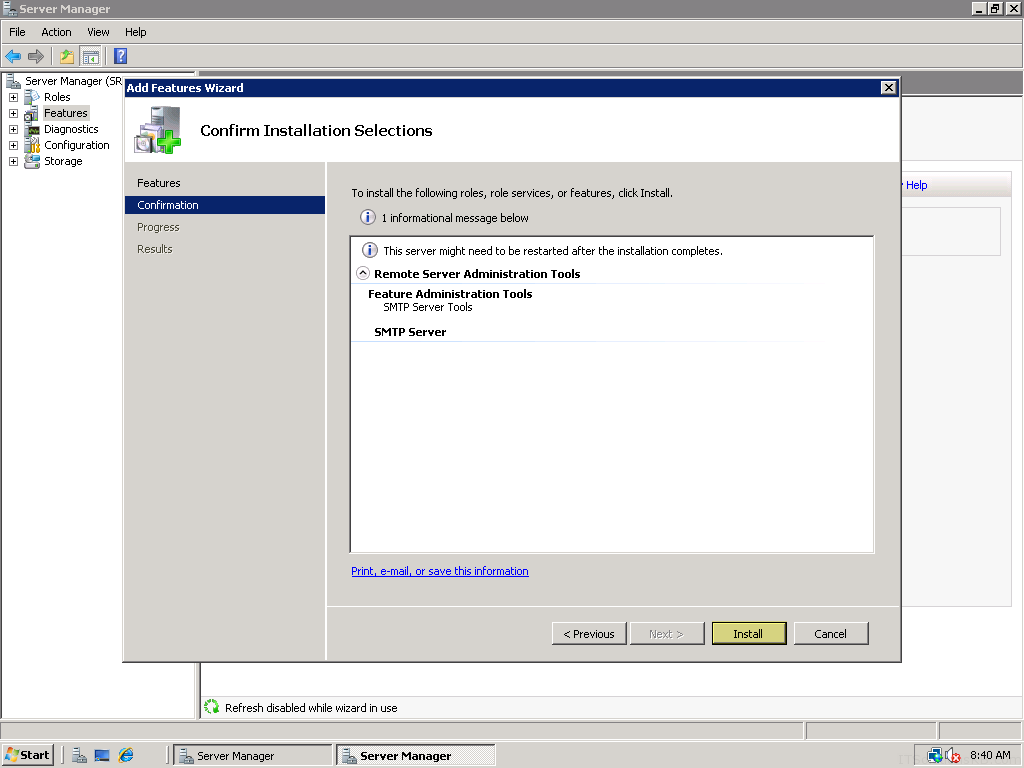

Step 4:
Waiting for installation to finish and clicking on Close


Step 5:
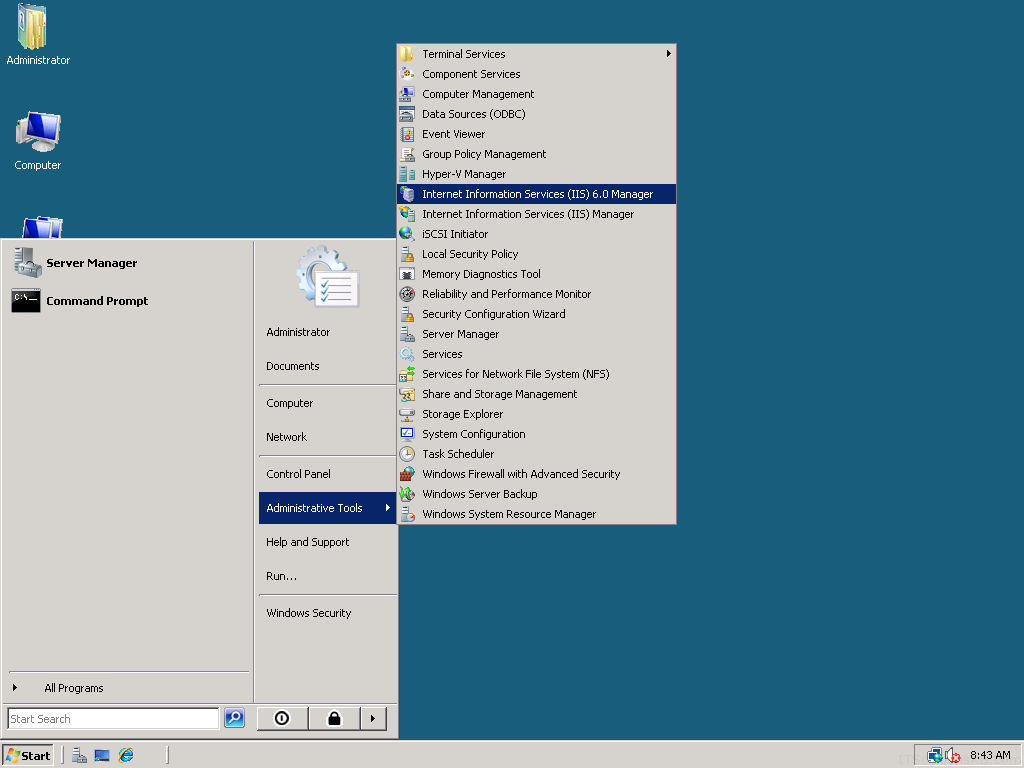
Opening IIS 6.0 Manager under Administrative Tools -> Internet Information Services 6.0


Step 6:
Under [SMTP Virtual Server] second mouse click and properties
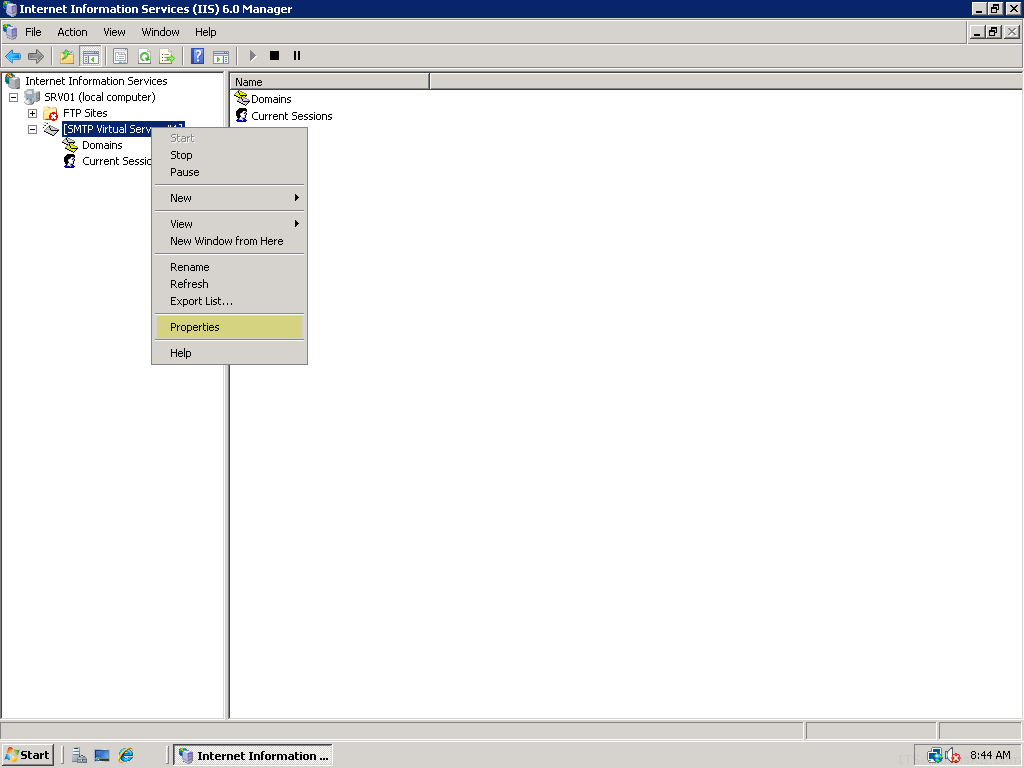

Step 7:
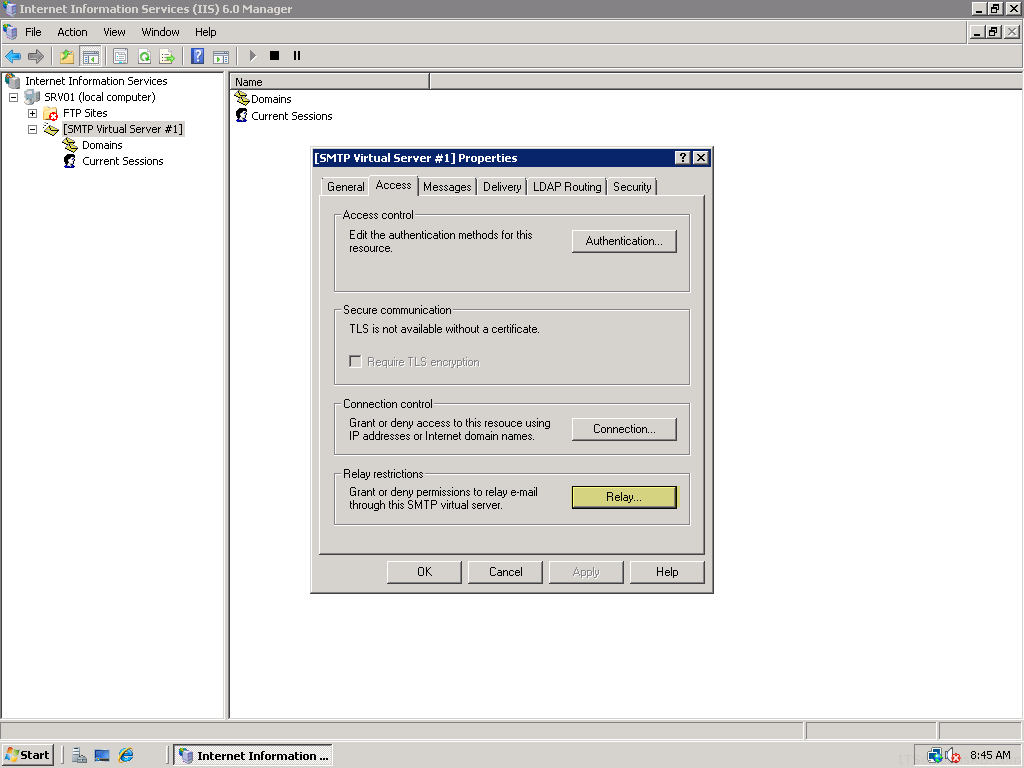
Select Relay under Access Tab


Step 8:
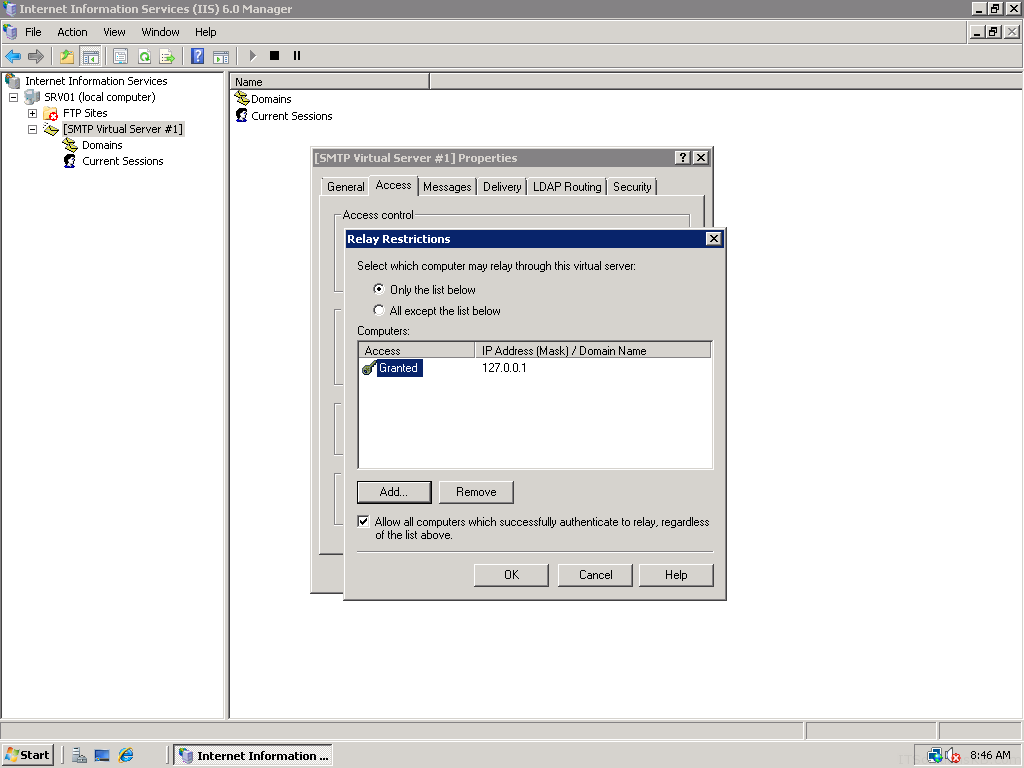
Select Only the list below and click on Add button


Step 9:
Enter IP Address 127.0.0.1 for relay


Step 10:
Sending a manual email through telnet to confirm everything working successfully.Telnet localhost 25 or telnet your public ip 25 and make sure you open the specific port on your firewall to be available to public.
To end message hit ENTER then a period then hit ENTER again
You will need to in an administrative command prompt and type “Telnet localhost 25 or telnet ‘outside IP’ 25″.  If you get the message “‘telnet’ is not recognized as an internal or external command,” then you need to install telnet. see here http://technet.microsoft.com/en-us/library/cc771275(v=WS.10).aspx

Friday, December 23, 2011

VB Script to Remotely Start or Stop a windows service with get currentstate

This script will start or stop a service on a remote computer. It will optionally allow you to retrieve the current state of the service before and after you make a change. This is useful for verifying the state of the service before you make a change and to verify the change has been applied.

Download Button5

 dim svcName, sStart, sStop  
dim service
dim objService
dim SvrName
dim input
dim input2
Dim svclist
Dim compname
dim objFile
Set WshShell = WScript.CreateObject("WScript.Shell")
on error resume next
input = Inputbox ("Computer Name that you would like to Start or stop service on:"& vbCRLF & "Default is this pc", _
"Stop or Start service","localhost")
If input = "" Then
WScript.Quit
End If
returnvalue=MsgBox ("Do you want display a list of services on remote pc?"& vbCRLF & "List will show the Service Short Name, the current State and the Service Display Name", 36, "Show Services")
if returnvalue = 6 then
Const ForWriting = 2
Set objFSO = CreateObject("Scripting.FileSystemObject")
Set objTextFile = objFSO.OpenTextFile _
("c:services list.txt", ForWriting, True)
Set colServices = GetObject("winmgmts://" & input).ExecQuery _
("Select * from Win32_Service")
objTextFile.WriteLine("Short Name") & VbTab & ("Current State") & VbTab & VbTab & ("Display Name")
For Each objService in colServices
objTextFile.WriteLine(objService.Name & VbTab & _
objService.State & VbTab & VbTab & objService.DisplayName)
Next
objTextFile.Close
WScript.Sleep 500
wShshell.Run "notepad c:services list.txt"
WScript.Sleep 500
If input = "" Then
WScript.Quit
End If
input2 = Inputbox ("Enter the Service name you want to start or stop:" & vbCRLF & "Use the services list.txt file to get service short name if you don't know it." & vbCRLF & "print spooler = spooler" & vbCRLF & "remote registry = remoteregistry" & vbCRLF & "Windows Event log = eventlog"& vbCRLF & "Default is Print Spooler" & vbCRLF & "","Service Name","spooler")
If input2 = "" Then
WScript.Quit
End If
SvrName = input
svcName = input2
Set service = GetObject("winmgmts:!\" & svrName & "rootcimv2")
svc = "Win32_Service=" & "'" & svcName & "'"
state = inputbox _
("Enter start or stop to Change the Status of Service" & vbCRLF & "lowercase only" & vbCRLF & "Default is start","start or stop","start")
If state = "" Then
WScript.Quit
End If
if state = "start" then
Set objService = Service.Get(svc)
retVal = objService.StartService()
returnvalue=MsgBox ("Do you want re-open the services list.txt file and verify the state change?", 36, "Started the " & svcName & " service on " & SvrName)
if returnvalue = 6 then
Set objFSO = CreateObject("Scripting.FileSystemObject")
Set objTextFile = objFSO.OpenTextFile _
("c:services list.txt", ForWriting, True)
Set colServices = GetObject("winmgmts://" & input).ExecQuery _
("Select * from Win32_Service")
objTextFile.WriteLine("Short Name") & VbTab & ("Current State") & VbTab & ("Display Name")
For Each objService in colServices
objTextFile.WriteLine(objService.Name & VbTab & _
objService.State & VbTab & objService.DisplayName)
Next
objTextFile.Close
WScript.Sleep 500
wShshell.Run "notepad c:services list.txt"
WScript.Sleep 500
end if
WScript.Quit
elseif state = "stop" then
Set objService = Service.Get(svc)
retVal = objService.StopService()
end if
returnvalue=MsgBox ("Do you want re-open the services list.txt file and verify the state change?", 36, "Stopped the " & svcName & " service on " & SvrName)
if returnvalue = 6 then
Set objFSO = CreateObject("Scripting.FileSystemObject")
Set objTextFile = objFSO.OpenTextFile _
("c:services list.txt", ForWriting, True)
Set colServices = GetObject("winmgmts://" & input).ExecQuery _
("Select * from Win32_Service")
objTextFile.WriteLine("Short Name") & VbTab & ("Current State") & VbTab & ("Display Name")
For Each objService in colServices
objTextFile.WriteLine(objService.Name & VbTab & _
objService.State & VbTab & objService.DisplayName)
Next
objTextFile.Close
WScript.Sleep 500
wShshell.Run "notepad c:services list.txt"
WScript.Sleep 500
end if
WScript.Quit
end if

Friday, December 16, 2011

Open Outlook 2003, 2007, 2010 or 2013 secure temp olk folderlocation.vbs script

A useful script, especially for those high maintenance users who insist on editing excel or word documents they open from Outlook and then frantically calling your help desk complaining they can't locate files they saved while working in Outlook. Place the script on their desktop and have them run it first before calling your help desk.. Works with Outlook 2003, 2007, 2010 and now also with Outlook 2013.

Download Button5
 ' This script will open the Outlook Secure Temp folder location for Outlook   
' 2003, 2007, 2010 and 2013
Dim WshShell, strValue, openlocation
Set WshShell = WScript.CreateObject(“WScript.Shell”)
const HKEY_CURRENT_USER = &H80000001
on error resume next
strComputer = “.”
Set oReg=GetObject(“winmgmts:{impersonationLevel=impersonate}!\” &_
strComputer & “rootdefault:StdRegProv”)
strKeyPath = “SoftwareMicrosoftOffice11.0OutlookSecurity”
strValueName = “OutlookSecureTempFolder”
oReg.GetStringValue HKEY_CURRENT_USER,strKeyPath,strValueName,dwValue
If IsNull(dwValue) Then
Else
strKeyPath = “SoftwareMicrosoftOffice11.0OutlookSecurity”
strValueName = “OutlookSecureTempFolder”
oReg.GetStringValue HKEY_CURRENT_USER,strKeyPath,strValueName,strValue
openlocation = “EXPLORER.exe /e,” & strValue
wShshell.Run openlocation
End If
strKeyPath = “SoftwareMicrosoftOffice12.0OutlookSecurity”
strValueName = “OutlookSecureTempFolder”
oReg.GetStringValue HKEY_CURRENT_USER,strKeyPath,strValueName,dwValue
If IsNull(dwValue) Then
Else
strKeyPath = “SoftwareMicrosoftOffice12.0OutlookSecurity”
strValueName = “OutlookSecureTempFolder”
oReg.GetStringValue HKEY_CURRENT_USER,strKeyPath,strValueName,strValue
openlocation = “EXPLORER.exe /e,” & strValue
wShshell.Run openlocation
End If
strKeyPath = “SoftwareMicrosoftOffice14.0OutlookSecurity”
strValueName = “OutlookSecureTempFolder”
oReg.GetStringValue HKEY_CURRENT_USER,strKeyPath,strValueName,dwValue
If IsNull(dwValue) Then
Else
strKeyPath = “SoftwareMicrosoftOffice14.0OutlookSecurity”
strValueName = “OutlookSecureTempFolder”
oReg.GetStringValue HKEY_CURRENT_USER,strKeyPath,strValueName,strValue
openlocation = “EXPLORER.exe /e,” & strValue
wShshell.Run openlocation
End If
strKeyPath = “SoftwareMicrosoftOffice15.0OutlookSecurity”
strValueName = “OutlookSecureTempFolder”
oReg.GetStringValue HKEY_CURRENT_USER,strKeyPath,strValueName,dwValue
If IsNull(dwValue) Then
Else
strKeyPath = “SoftwareMicrosoftOffice15.0OutlookSecurity”
strValueName = “OutlookSecureTempFolder”
oReg.GetStringValue HKEY_CURRENT_USER,strKeyPath,strValueName,strValue
openlocation = “EXPLORER.exe /e,” & strValue
wShshell.Run openlocation
End If
WScript.Quit

Friday, December 9, 2011

Proxy On OFF Switch with get current state v2

A useful vbscript  for Laptop users who work in and out of the office and are behind a proxy server when in the office and are not when out of the office. For those users who have difficulty changing the settings manually through internet explorer this script can save them and your helpdesk invaluable amounts of time and headaches.
This script detects the current proxy state and depending on that sate prompts you to enable or disable it.
It also auomatically closes IE so the settings take effect immediately and then re- launches IE with the new settings.
The only variable thats needs to be changed is on line 37
Replace <Domain Proxy Server> with the IP or name of your domain proxy server without the brackets <> eg. ContosoProxy:80


Download Button5

  'Proxy On OFF Switch with get current state v2   
'Dec. 6, 2011
Set WshShell = WScript.CreateObject("WScript.Shell")
DimSetting = WshShell.RegRead ("HKCU\SOFTWARE\Microsoft\Windows\CurrentVersion\Internet Settings\ProxyEnable")
If DimSetting = 1 Then
'Wscript.Echo "Proxy is Currently Enabled"
returnvalue=MsgBox ("Do you want to DISABLE the Proxy?", 36, "Proxy state is Currently ENABLED")
if returnvalue = 6 then
' BEGIN CALLOUT A
WshShell.RegWrite "HKCU\Software\Microsoft\Windows\" & _
"CurrentVersion\Internet Settings\ProxyEnable", _
0, "REG_DWORD"
' END CALLOUT A
wShshell.Run "taskkill /im iexplore.exe",0,True
WScript.Sleep 500 'give kill time to take effect
'Inform User that the task is done.
Mybox = MsgBox("Proxy is now disabled" ,vbOkOnly,"Proxy is Disabled")
're-launch internet explorer
wShshell.Run "iexplore.exe"
End If
WScript.Quit
Else
'Wscript.Echo "Proxy is Currently Disabled"
End If
'On Error Resume Next
returnvalue=MsgBox ("Do you want to ENABLE the Proxy?", 36, "Proxy state is Currently DISABLED")
If returnvalue = "" Then
WScript.Quit
End If
if returnvalue = 6 then
' BEGIN CALLOUT A
'Replace <Domain Proxy Server> in line 50 with IP or your proxy server name without the <> eg. ContosoProxy:80
WshShell.RegWrite "HKCU\Software\Microsoft\Windows\" & _
"CurrentVersion\Internet Settings\ProxyEnable", _
1, "REG_DWORD"
WshShell.RegWrite "HKCU\Software\Microsoft\Windows\" & _
"CurrentVersion\Internet Settings\ProxyServer","<Domain Proxy Server>:80", "REG_SZ"
WshShell.RegWrite "HKCU\Software\Microsoft\Windows\" & _
"CurrentVersion\Internet Settings\ProxyOverride","<local>", "REG_SZ"
' END CALLOUT A
wShshell.Run "taskkill /im iexplore.exe",0,True
WScript.Sleep 500 'give kill time to take effect
'Inform User that the task is done.
Mybox = MsgBox("Proxy is enabled and set to enter your companies proxy server",vbOkOnly,"Proxy Enabled")
're-launch internet explorer
wShshell.Run "iexplore.exe"
End If
WScript.Quit

Sunday, December 4, 2011

Get and edit a remote computers hosts file

For those times when you don’t have easy access to computer and need to view its hosts file then the below script can come in handy.


Download Button5
 'script will get and allow you to edit a remote computers hosts file  
'it also changes the association for extensionless files like the hosts file to open with notepad
'Get and open Remote Computers Hosts file
on error resume next
Set WshShell = Wscript.CreateObject("Wscript.Shell")
strcomputer = inputbox("Enter remote computer name or leave as localhost for this computer","Get Hosts file","Localhost")
If strComputer = "" Then
WScript.Quit
End If
'Associate Extensionless Files with Notepad
wshShell.run "%comspec% /c c: & assoc .=txtfile"
WScript.Sleep 500 'give association time to take effect
'open hosts file on remote
wshShell.Run "\" & strcomputer & "c$WindowsSystem32driversetchosts"

Get a remote computers windowsupdate.log file

For those times when you don't have easy access to computer and need to view its windowsupdate.log to find out why updates are'nt being applied then the below script can come in handy.

Download Button5
 'This script will get a remote computers windowsupdate.log file  
'it also changes the association for .log files to open with notepad
'Get and open WindowsUpdate log file on remote Computer
on error resume next
Set WshShell = Wscript.CreateObject("Wscript.Shell")
strcomputer = inputbox("Enter remote computer name or leave as localhost for this computer","Get WindowsUpdate.log file","Localhost")
If strComputer = "" Then
WScript.Quit
End If
'Associate .log Files with Notepad
wshShell.run "%comspec% /c c: & assoc .log=txtfile"
WScript.Sleep 500 'give association time to take effect
'open WindowsUpdate.log file on remote computer
wshShell.Run "\" & strcomputer & "c$WindowsWindowsUpdate.log""