popunder new

https://www.blogger.com/blog/posts/1739890295310631346

Monday, April 29, 2013

Windows 8 based PE boot disk with explorer shell and many greatutilities

Update 07.09.13 The iso now includes two versions. One that requires the press any key and one that does not. Choose which ever suits your needs. Also fixed the desktop PE url and updated some of the portable apps.

This is my newly created customized Windows 8 PE x86 boot disk with windows 8 explorer shell and many great diagnostic and repair utilities. I have updated the iso  on 06.07.13 to include two imaging /cloning applications.  Drive Image XML and Drive Snapshot. Shortcuts for each  in the start menu and on the desktop. It iincludes the following open source free apps

Google Chrome 26Opera 12
7ZipMBR Fix
ServiWinRegshot
AMSNANote
EraserFilezilla FTP
Foxit PDF ReaderInfran View
Multi ResNotepad ++
Process ExplorerProcess Hacker
Tree SizeTweet Deck
IMDisk Virtual DiskDefraggler
DriveImage XMLDrive Snapshot
VLCVirtual Keyboard

All portable apps are listed in the Windows Start Menu under all programs.

image

If you prefer to use the Portable Apps menu instead then run the Portable Apps Menu shortcut on the desktop.  The portable apps menu also allows you to download more apps by selecting the Apps>Get more apps. These freshly downloaded apps will only be available during the current session.

image


Screenshots
image

 
image

 Download Button5

It’s a large download (about 500mb) so be patient it can take 10-20 minutes (depending on your internet speed) to download. After downloading burn either version of the bootable iso  file to CD, USB or mount  the iso.

Note:  To prevent its use as a pirated operating system, Windows PE automatically stops running the shell and reboots after 72 hours of continuous use. This time period is not configurable.

Saturday, April 27, 2013

ImgBurn 2.5.7.0 silent installer

ImgBurn is a lightweight open source CD / DVD / HD DVD / Blu-ray burning application that everyone should have in their toolkit!

Screenshot - Ez-Mode Picker

For those who may need to install ImgBurn 2.5.7.0 to users silently.  Download this packaged executable from my skydrive link below.

Download Button5

FileZilla 3.14.1 silent Installers for x86 and x64

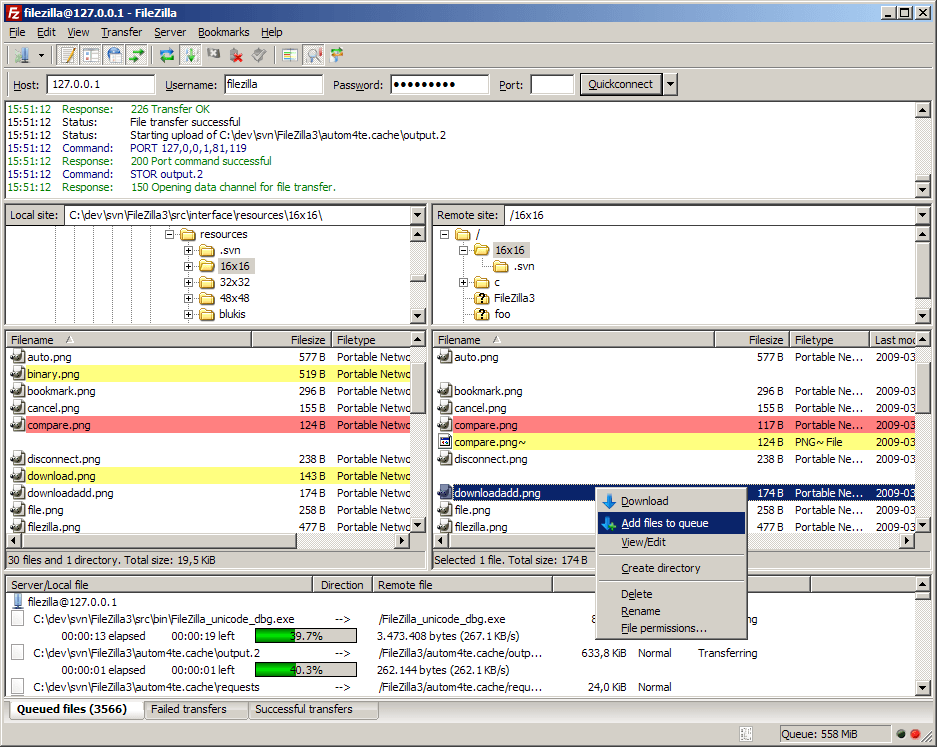
FileZilla is an excellent open source FTP client.


For those who may need to install FileZilla 3.14.1  to users silently. Download the packaged executables for both the x86 and x64 versions below.

Download Button5

Notepad++ 6.5.5 silent installer

Notepad++ is an excellent free source code editor and Notepad replacement that supports several languages.

notpad

For those who may need to install Notepad++ 6.5.5 to users silently.
Updated Mar. 21/2014

Download

Wednesday, March 20, 2013

Waves Collection Windows Wallpaper Theme

This is my Windows 7/8 Waves Collection Windows Wallpaper Theme. After downloading double-click waves.themepack to install it.

Download Button5

Previews of the wave pictures in the theme

2-15-2013 2-48-10 AM

Tuesday, January 29, 2013

PowerShell 3 quick switch to PowerShell 2

PowerShell 3 improves on PowerShell 2 by adding almost 500 new cmdlets built-in.  One drawback unfortunately, is cmdlets or scripts written for version 2 do not always work as expected.

If you need to quickly switch to version 2 while you are in PowerShell 3 type the following.

 PowerShell.exe -version 2  
 
You will see the copyright info change to 2009 and if you type get-host it will display version 2.

image

To switch back to version 3 you can either  close and re-open PowerShell or simply type in your current session

 PowerShell.exe -version 3  
 

image

Set PowerShell icon launch to default to run as Administrator

Many commands in PowerShell will not run unless they are run as an administrator.  You can of coarse right click on the taskbar icon and choose the ‘Run as Administrator’ option. But if you prefer to have the icon or shortcut default to run PowerShell as Administrator then you can right click on it once, and choose the ‘Properties’ item.

image

In the window that pops up, near the bottom right of the window click  the ‘Advanced’ button.

image

On the next (and last) screen, you will see a checkbox with ‘Run as administrator’. make sure that checkbox is selected, click ‘OK’, then ‘OK’ on the main Properties window to exit .

image

From now on out, when you click the PowerShell icon, it will run as administrator and you should see the Administrator prefix displayed in the PowerShell title bar.

image