popunder new

https://www.blogger.com/blog/posts/1739890295310631346

Wednesday, August 24, 2011

Adding the DART 7 Recovery Toolset to the Default Windows 7 or Server 2008 R2 Recovery PE

If you want to have access to the broader range of tools that  Microsoft's Diagnostics and Recovery Tools (DART) gives you, then here is way to add these into your default Windows RE

Note that you will need an active Software Assurance (SA) license to each OS that deployed with DaRT.

Creating the Dart 7 ISO Image


Install DaRT 7 from Microsoft Desktop Optimization Pack 2011 R2 (available to customers with active Software Assurance license) on your computer or on computer with DVD burner.


From the Windos start menu  under Microsoft Dart 7 open the DaRT Recovery Image Wizard and  follow these steps to create DaRT 7 ISO image:

On the welcome screen click "Next".


Insert and navigate to Windows 7/Server 2008 R2 media and click "Next".
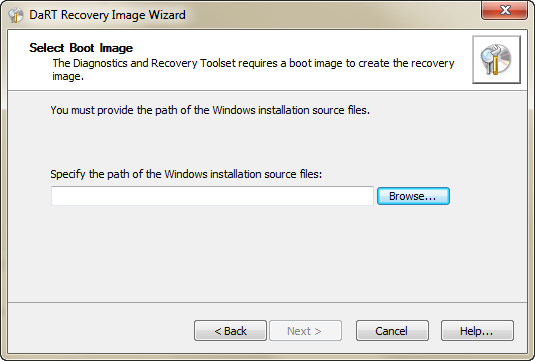


On the Preparing files screen click on "Next".


Select or exclude the tools that will be included in your ERD image and click on "Next".


Locate the Windows Debugging tools and click on "Next".


Choose if you want to allow Remote Connections and click on "Next".


Choose if you want to update your ERD's Standalone system sweeper and click on "Next".
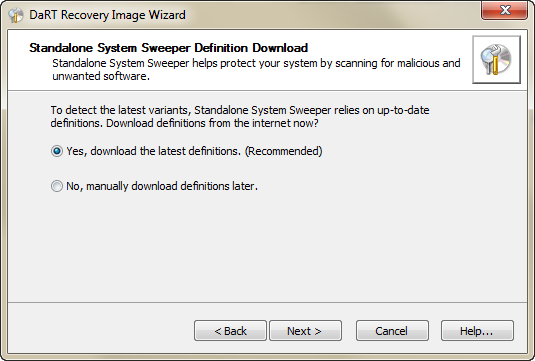


If you want to add additional drivers, click on Add. Then click on "Next".


On the Additional Files click on "Next".


Note: You can add useful applications and files to your ERD ISO image such as disk imaging utility, corporate antivirus, etc.

To create the ISO image click on "Next".


If you want to burn the ISO into a media set the wizard to your media burner. Click on "Next" to proceed.


Click on "Finish".
Copying the new dart wim file to the hidden Recovery folder

In order to replace the default Windows RE boot image with DaRT, you'll need to use an account with administrative privileges (member of the local Administrators group at least).

In order to perform the replacement, follows these steps:

Open Windows Explorer, click on the ALT key and choose "Folder Options" from the Tools menu.

Choose "Show hidden files, folders and drives" and deselect "Hide protected operating system files (Recommended)"and "Hide extensions for known file types".

First we need to change the folder opens so we can view the hidden recovery folder. Open Windows Explorer, click on the ALT key and choose "Folder Options" from the Tools menu.

Choose "Show hidden files, folders and drives" and deselect "Hide protected operating system files (Recommended)"and "Hide extensions for known file types".

8-24-2011 3-04-08 AM

Click "OK".

Open C: Drive, right-click Recovery folder. Choose "Properties" from the menu.

Select Security tab, and click on "Edit".

On the new windows, click on "Add" and find you user account, then click on "OK".

Assign Allow: Full Control permissions for the specific account and click on "OK".

8-24-2011 3-06-33 AM

Now, as you can see, the C:Recovery folder is accessible to your user account.

8-24-2011 3-09-54 AM

At C:Recovery<UID> you'll find the Winre.wim image file. This is the Windows RE image that has been loaded every time you've chosen to repair your computer from the F8 startup menu.

8-24-2011 3-10-30 AM

Next time you restart your computer press F8 to get to the Advanced Boot Options Screen then choose "Repair your computer"

Advanced_Boot_Options

There's the option to start network support at the start of Windows RE. Choose YES

8-24-2011 2-50-03 AM

In Windows PE your drive mapping will not have the same drive letters and this can be confusing.

Choose YES to remap them

8-24-2011 2-50-13 AM

Select you Language

8-24-2011 2-50-23 AM

You'll notice that DART (Microsoft Diagnostics and Recovery Toolset) has been added to the Windows RE menu

8-24-2011 2-51-05 AM

You now have 14 additional tools at your disposal.  My  favorites are below.

Locksmith (for those times when someone messes up their administrator passwords)

Standalone System Sweeper (for that nasty malware that's difficult to clean while in Windows)

Remote Connections (have the user select this and you can remote in with the Dart Remote connection viewer and fix it all from your desk)

8-24-2011 2-51-20 AM

Reference: http://www.petri.co.il/replace-default-windows-recovery-environment-in-dart.htm

Monday, August 22, 2011

Adding the admx files from Office 2010 admin templates into your GPMC

I had to add some Outlook 2010 specific GPO’s this week and found the instructions available on the net weren't quite adequate. So I thought I would explain the procedure I took to get it done.

First off, you will need to download the admin template files Get them here

The 32bit and 64bit admx files are identical.  You only need the different versions if you are using the Office Customization Tool (OCT)

The downloaded file is a self-extracting file. Just launch it and extract the file to a folder. Inside that folder will be an admx folder and the corresponding language files (in their own folders). There will also be an adm folder (these are the older style adm template files) and a admin folder (which you only need if your using OCT and don't have the enterprise office install)

Now go to the folder C:windowssyvoldomainpolicies

Create a folder inside of policies folder called policydefinitions  and copy all the files from the admx folder that was created  from the extraction  and any language file folders you may need. The complete folder path will be C:windowssyvoldomainpoliciespolicydefinitions 


In my case I added all the office admx files and only the corresponding English languages.


admx locations

Close your group policy console if open and re-open it. As shown below, all of the Office 2010 admx template files will now show up under Administrative templates since it is retrieving them automatically from the central store.

policy

In this particular case I was adding a GPO to automatically check user spelling before sending emails.

spelling rule

That’s It. Now that wasn’t too difficult after all

Wednesday, February 2, 2011

Installing Windows Media Player plugin for Firefox or Chrome on WindowsServer 2008 R2

When installing the Windows Media Player Firefox or Chrome Plugin on Windows Server 2008, you receive the following error:


Package does not support server operating systems

I extracted the np-mswmp.dll from the installer package you can download from the link below.

Download Button5

To get windows media player working on server 2008 just copy np-mswmp.dll to one of the locations below depending on the browser you are using.

For Chrome plugin folder it's in:
%USERPROFILE%\AppData\Local\Google\Chrome\Application\Plugins

For Firefox plugin folder is in
C:\Program Files (x86)\Mozilla Firefox\plugins

Tuesday, January 11, 2011

Enable or disable system restore on a remote computer

This script prompts for a remote pc name and then gives you the option to either enable or disable the system restore option.

Instructions:

1: Run the script

2: Enter the name or the ip address of the remote computer.

image

3: Select 1 to enable it or 2 to disable it.

image

I have tested the script on Windows 7 x86/x64. This must be run from an elevated command prompt. Domain Administrator permissions are required.

Download Button5

  'Enable or disable system restore on a remote system   
strComputer = InputBox("Enter the COMPUTER NAME or the IP address of the system you would like to enable or disable System Restore on. (use localhost for current system)","Remotely Enable or Disable System Restore","localhost")
If strComputer = "" Then
WScript.Quit
End If
strChoice = Inputbox ("System Restore:" & vbCrLf & vbCrLf & "1: Enable"& vbCrLf &"2: Disable" & vbCrLf& vbCrLf & vbCrLf & "Please enter 1 or 2 (leave blank to quit):","Enter 1 to Enable or 2 to Disable","")
If strChoice = "" Then
WScript.Quit
End If
if strChoice = 1 then
Set objWMIService = GetObject("winmgmts:" _
& "{impersonationLevel=impersonate}!\\" & strComputer & "\root\default")
Set objItem = objWMIService.Get("SystemRestore")
errResults = objItem.Enable("")
'Inform User that the task is done.
Mybox = MsgBox("System Restore is now enabled on "& strComputer &"" & vbCRLF ,vbOkOnly,"System Restore Enabled")
End If
if strChoice = 2 then
Set objWMIService = GetObject("winmgmts:" _
& "{impersonationLevel=impersonate}!\\" & strComputer & "\root\default")
Set objItem = objWMIService.Get("SystemRestore")
errResults = objItem.Disable("")
'Inform User that the task is done.
Mybox = MsgBox("System Restore is now disabled on "& strComputer &"" & vbCRLF ,vbOkOnly,"System Restore Disabled")
End If